Mapping components in a chromeless UI
A chromeless UI is made up of controls and displays that must reflect player state and call the appropriate OptiView Player APIs. This guide maps common interface components to the properties, methods, events, and supporting guides needed to implement them.
A component can provide context, perform an action, or do both. For example, a play button performs an action, while a current-time display provides context.
This guide covers:
- Play and pause
- Volume mute and level
- Current time and duration
- Scrubbing and buffered ranges
- Live playback
- Audio, subtitle, and quality selection
- Fullscreen and picture-in-picture
- Chromecast and AirPlay
- Subtitle and advertisement overlays
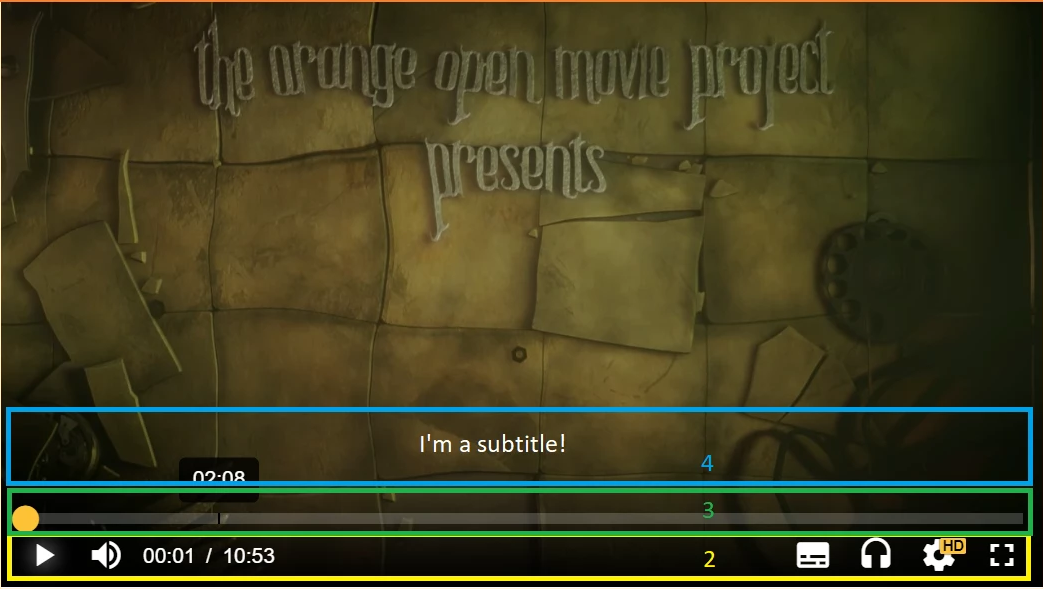
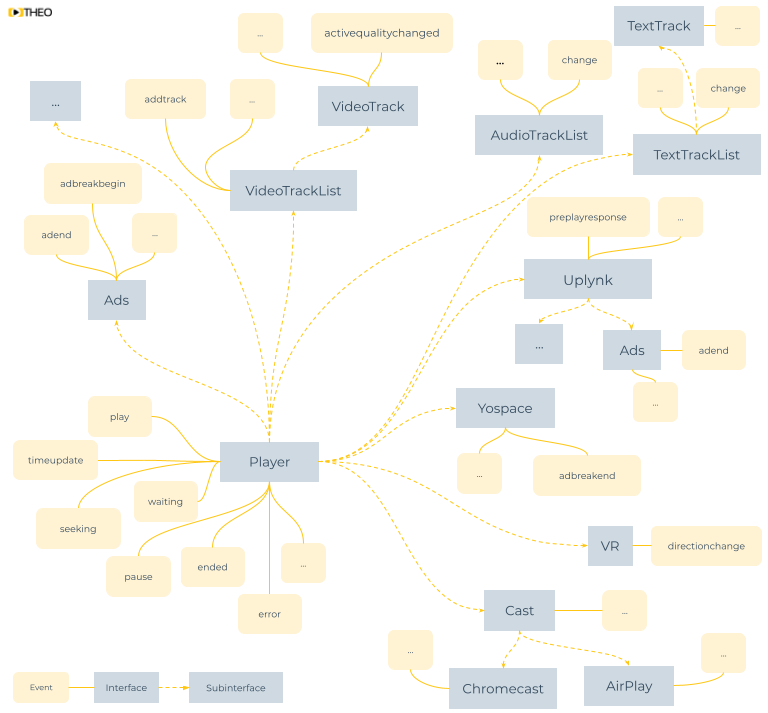
The Player API interfaces and events provide the underlying state and actions used by these components.
Play button
Show the play button while the player is paused, as described in tracking player states. When a viewer selects it, call player.play().
Pause button
Show the pause button while the player is playing, as described in tracking player states. When a viewer selects it, call player.pause().
Volume mute button
Read and update the muted property. Reflect the current value in the button and toggle it with player.muted = !player.muted.
Volume control
Read and update the volume property. Reflect the current level and muted state in the control.
Current-time display
Read currentTime to display the relative playback position in seconds.
For live streams, you may prefer currentProgramDateTime, which provides an absolute value such as "2022-04-01T13:37:42.666Z". This is also useful when implementing an electronic program guide.
Duration display
Read duration. It returns the duration in seconds for video-on-demand streams and Infinity for live streams.
Calculate the remaining duration by subtracting currentTime from duration for finite streams.
Scrub bar
Seek by setting currentTime. For live streams, you can use currentProgramDateTime to seek to absolute playback positions.
Only seek within the ranges exposed by seekable. On Web, valid values remain between player.seekable.start(0) and player.seekable.end(player.seekable.length - 1).
Subscribe to timeupdate to update the scrubber position during playback. The event is dispatched approximately every 200 milliseconds.
The player dispatches seeking when a seek starts and seeked when it completes. Consider showing a loading state between these events.
Buffered ranges
Use the progress event and buffered ranges to indicate which portions of the stream are already available for immediate playback.
Live button
A stream is live when duration is Infinity. To move to the live edge, set currentTime to player.seekable.end(player.seekable.length - 1).
Audio selection
Use these guides to implement an audio-track selector:
Subtitle selection
Use these guides to implement a subtitle and closed-caption selector:
Video quality selection
Use these guides to implement a quality selector:
Fullscreen button
The Presentation API is not available for switching a chromeless player between fullscreen, inline, and picture-in-picture modes. Implement fullscreen behavior with the browser Fullscreen API.
For iOS browsers, you can use webkitEnterFullscreen() or resize the player container to fill the viewport.
Picture-in-picture button
Implement picture-in-picture UI and behavior independently of the Player SDK. The Player Picture-in-Picture API is not available for chromeless players.
On Web, you can locate the active video element with player.element.querySelectorAll('video[src]')[0].
Related resources:
- Picture-in-Picture for the Web
- Safari picture-in-picture controls
- Android picture-in-picture
- Apple platform picture-in-picture
Chromecast button
Use the Chromecast guide to detect availability and start or stop a casting session.
AirPlay button
Use the AirPlay guide to detect availability and start or stop an AirPlay session.
Subtitle cues
You can retain the Player SDK's default subtitle and closed-caption rendering in a chromeless UI. Depending on your design, additional styling may be required:
.theoplayer-texttracks * {
  font-size: 1em !important;
}
For complete rendering control, detect active text-track cues, then insert and remove each cue in your own interface.
Advertisement metadata
During advertisements, your UI may need to display a countdown, skip button, or ad markers on the scrub bar.
When using Google IMA, the integration may provide some interface elements. When using the Player SDK's default client-side ad integration, subscribe to the relevant ad events and update your UI in their callbacks.
Apply the same event-driven approach to server-side ad insertion.