Getting started with a chromeless UI on iOS and tvOS
Building a chromeless UI means building a brand-new video player UI from scratch. You achieve this by implementing your own custom UI components, and by associating those components with the appropriate THEOplayer API. The screenshot below visualizes such a chromeless UI -- albeit not the most pretty one.
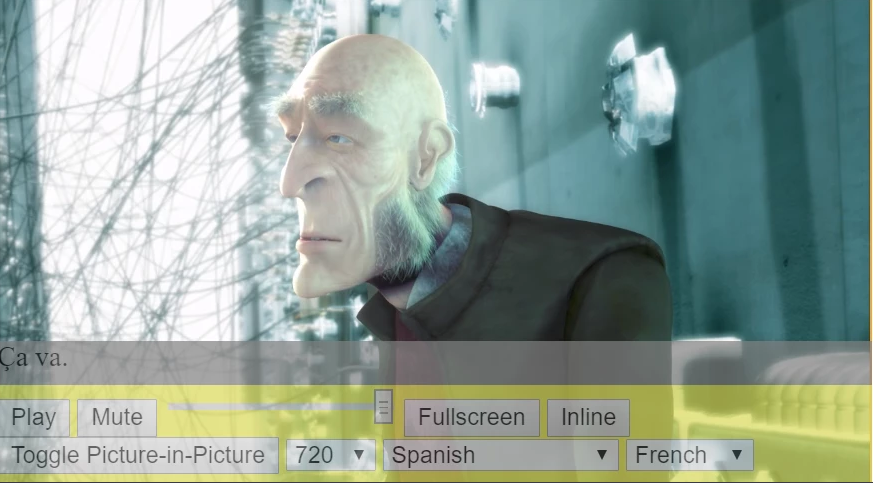
A chromeless UI gives you complete control over your full UI and UX, but it also means that you are responsible for implementing your full UI and UX. Achieving this feat requires you to have an adequate grasp on the video player architecture and its underlying API.
The goal of this guide is to advance your understanding on how to connect the dots between custom components and the THEOplayer API. For example, this guide will explain to which THEOplayer APIs you could map your custom play button.
Create a chromeless player instance
The iOS and tvOS SDKs do not ship a default UI. A THEOplayer instance renders video, and your application adds native controls on top.
let config = THEOplayerConfiguration(license: "your_license_string")
let player = THEOplayer(configuration: config)
The following guides refer to this player variable.
Track player states
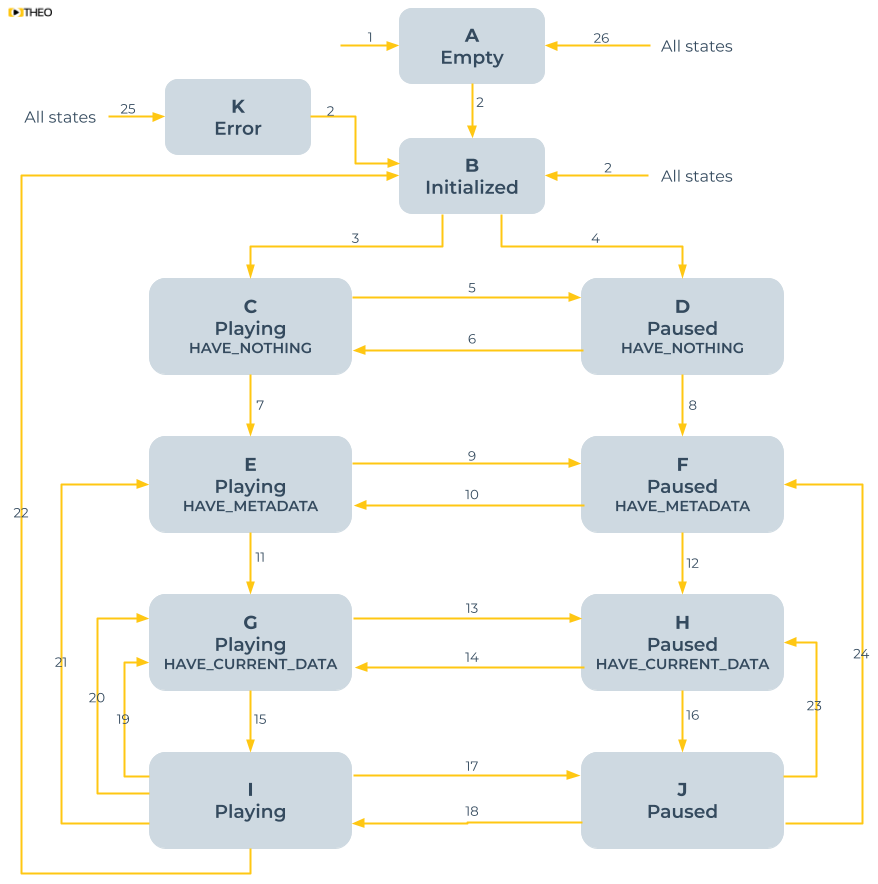
Before adding controls, learn how to track player states. Your UI should respond correctly when playback starts, pauses, buffers, ends, or encounters an error.
Next steps
Map UI components
Connect native controls and displays to the appropriate Player APIs.
Explore the sample project
Review a basic custom UI implementation for the iOS SDK.
Add UX enhancements
Plan loading, poster, next-content, intro-skip, and advertising experiences.
Handle errors
Make failures visible and actionable in your custom UI.