Mapping components in a chromeless UI on Android
A chromeless UI is made up of native Android controls and displays that must reflect player state and call the appropriate OptiView Player APIs. This guide maps the most common components to the APIs and supporting guides used to implement them.
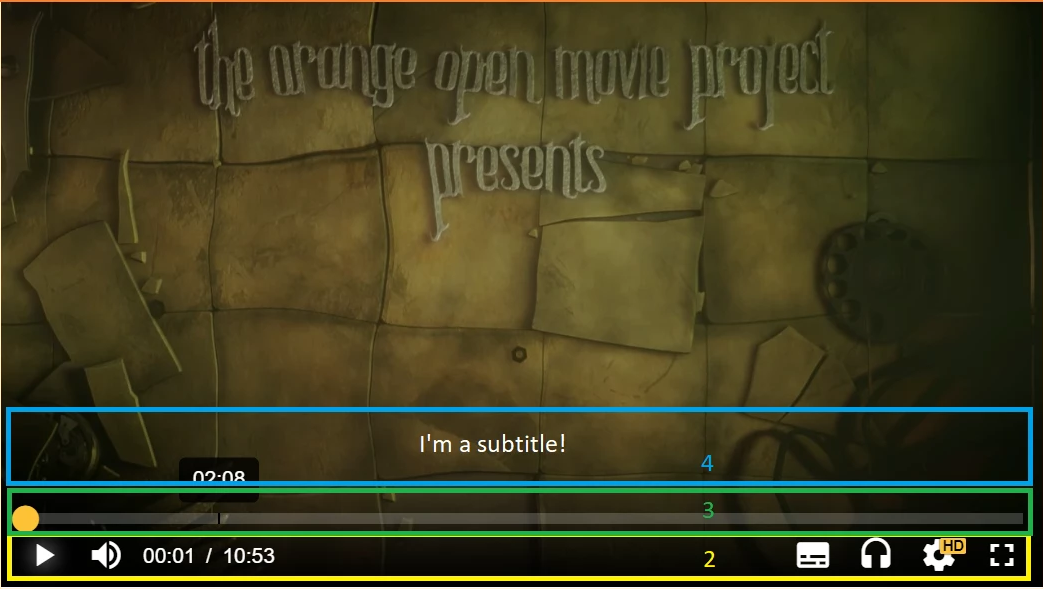
Play and pause
Show the appropriate control for the current state, as described in tracking player states. Call play() or pause() when the viewer selects it.
Mute and volume
Use isMuted() and setMuted() to implement mute controls.
Android delegates volume level changes to hardware controls, so the application should not provide an independent software volume slider.
Current time and duration
Use requestCurrentTime() and setCurrentTime() for the playback position. Use getDuration() for duration.
For live streams, duration is Infinity. You can use currentProgramDateTime when the interface needs an absolute program time.
Scrub bar and buffered ranges
Only seek within requestSeekable() ranges. Update the scrubber in response to TIMEUPDATE, and represent buffered ranges using requestBuffered().
Display a loading state between seeking and seek completion when appropriate.
Audio, subtitle, and quality selection
Use the platform guides to build track selectors:
- Detect audio tracks
- Enable and disable audio tracks
- Detect text tracks
- Enable and disable text tracks
- Detect video-track qualities
- Select a video-track quality
Fullscreen and picture-in-picture
Implement fullscreen handling and orientation changes in the application rather than relying on FullScreenManager. See Android's immersive-mode guidance.
Implement picture-in-picture UI independently of the Player SDK. The Player Picture-in-Picture API is not available for chromeless players.
Casting
Use the Chromecast guide to detect availability and start or stop a casting session. AirPlay guidance is available in the Web SDK documentation.
Subtitle and advertisement overlays
You can use the SDK's subtitle rendering or detect active text-track cues and render them yourself.
For advertising controls such as countdowns, skip buttons, and scrub-bar markers, subscribe to the relevant ad events and update your interface from their callbacks.