# Camera Drones
Using a drone, unmanned aerial vehicles (UAVs), or other flying cameras can be a way to provide a unique perspective on any real-time activities. Many of these remote-controlled devices can support network connectivity that enables either direct WebRTC or RTMP output that can be used as a broadcast streaming source.
This guide includes some examples:
1. [Capture from a DJI Mavic Mini](#dji)
2. [Record Drone Footage](#record-drone-footage)
If you are using a drone that is not listed, you should be able to use similar settings for configuring streaming with an [RTMP](https://docs-preview.optiview.dolby.com/pr-863/millicast/broadcast/rtmp-and-rtmps.md) ingestion source.
> **Reliable Networks**
>
> A stable internet connection is always required to achieve real-time streaming. Some aerial devices support cellular connectivity or can be used within range of a mobile device or network access point.
>
> *Please observe any safety protocols and regulations for drone usage in your region.*
## DJI
[DJI](https://www.dji.com/) is a leader in consumer and professional drones used for aerial videography. Several models support networking and RTMP streaming from the device that can be sent directly to OptiView Real-time Streaming for [distribution](https://docs-preview.optiview.dolby.com/pr-863/millicast/distribution.md) over WebRTC.
Some examples:
* [DJI Phantom](https://www.dji.com/phantom)
* [DJI Mavic 3](https://www.dji.com/mavic-3)
### Simple set up using the DJI Fly App
#### 1. Download the DJI Fly App
Download the [DJI Fly App](https://www.dji.com/au/downloads) compatible with your model. This is a DJI product, so the user interface and instructions may vary from what is shown below. Visit the official [DJI Support](https://www.dji.com/au/support?site=brandsite\&from=nav) for resources like product manuals, user guides, and news for the latest instructions.
The DJI Fly App with livestream RTMP supports the following DJI drones:
**Mavic Mini, DJI Air 3, DJI Mavic 3 Pro, DJI Mini2 SE, DJI Mini 3, DJI Mavic 3 Classic,DJI Avata, DJI Mini 3 Pro, DJI Mini Pro 4, DJI Mavic 3, DJI Air 2S, DJI FPV, DJI Mini SE, DJI Mini 2, Mavic Air 2.**
Many of the DJI controllers already include the DJI Fly App.
#### 2. Start the drone, controller, and app
When you are ready to setup your device, start the drone and the controller. Connect to the drone from the DJI application.
#### 3. Open the settings menu to configure RTMP
Select the menu in the upper right corner to open the available settings.
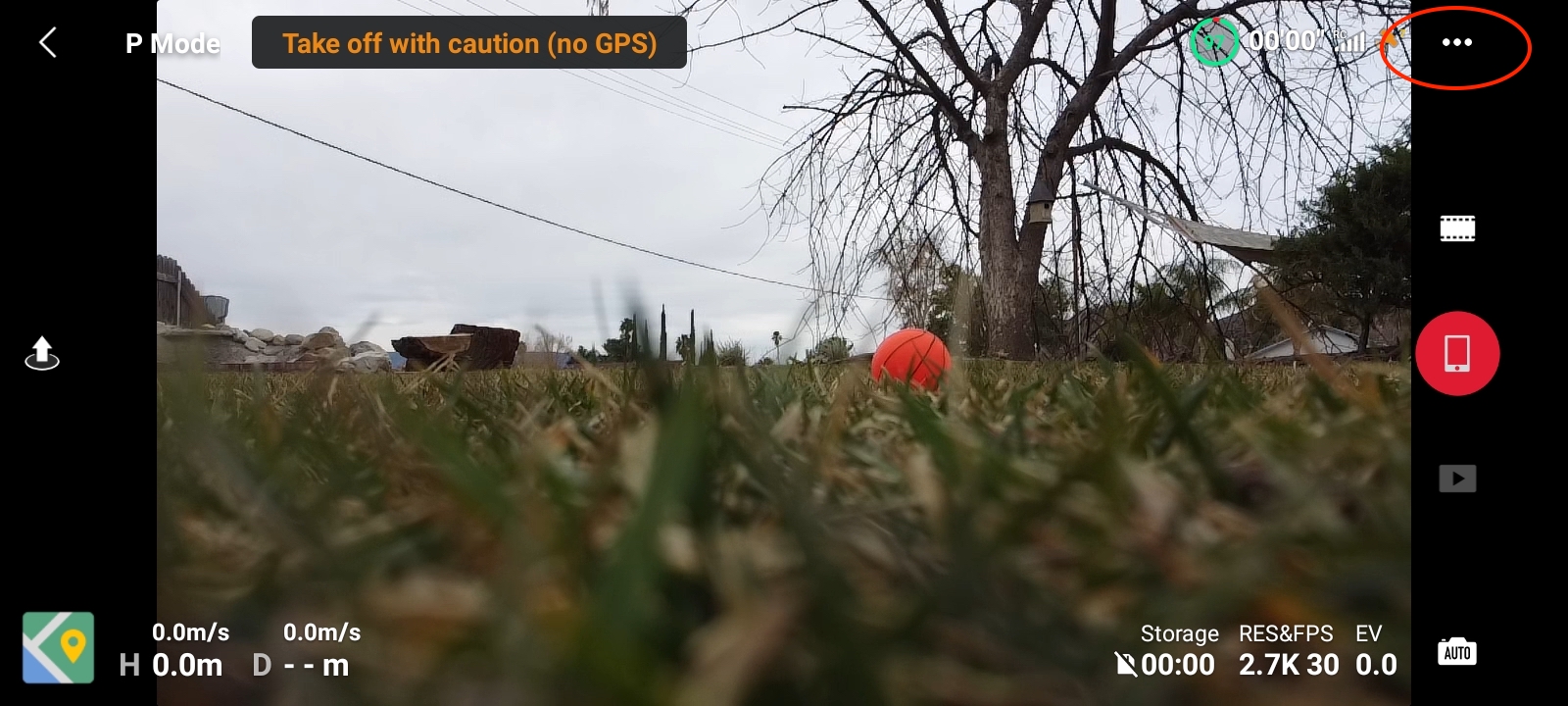
Select the **Transmission** tab and open **Live Streaming Platforms**.
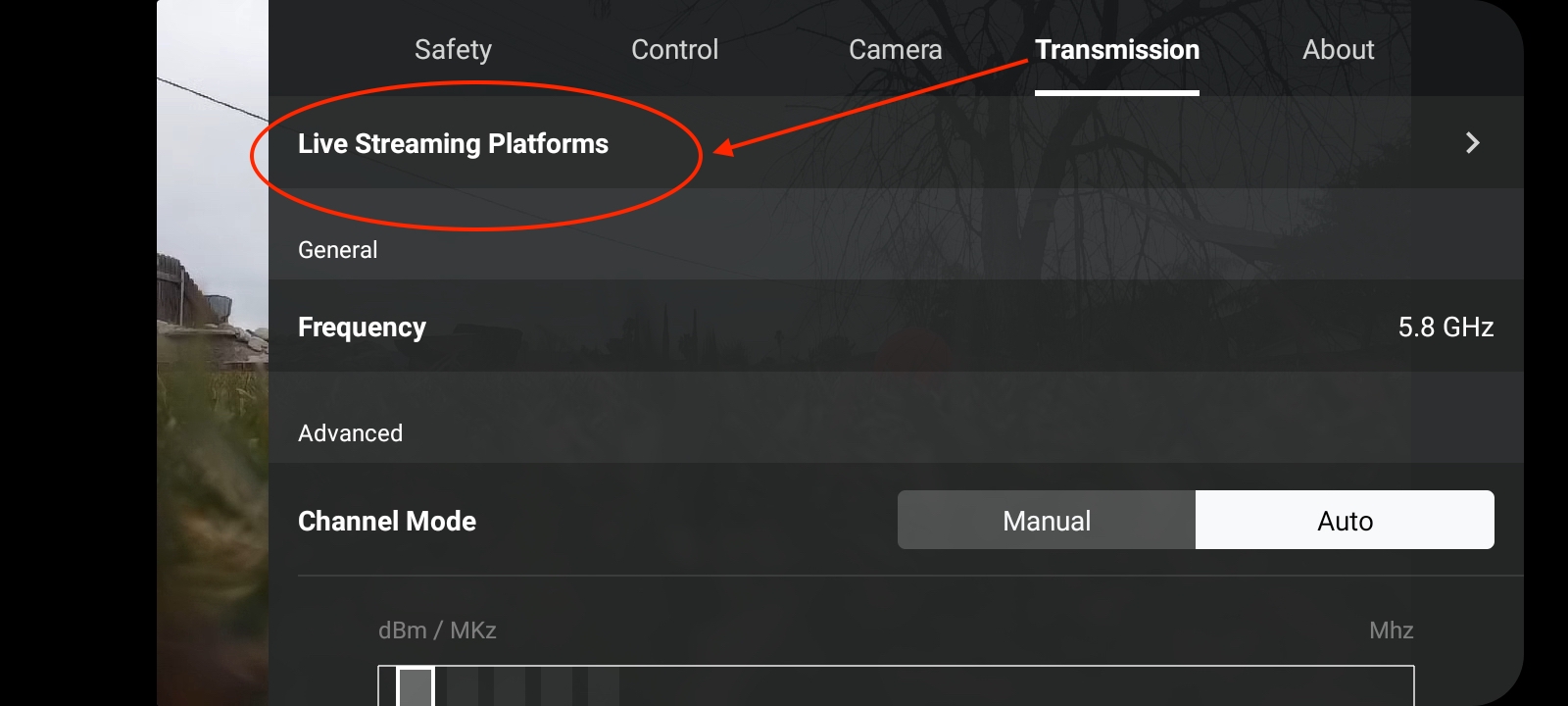
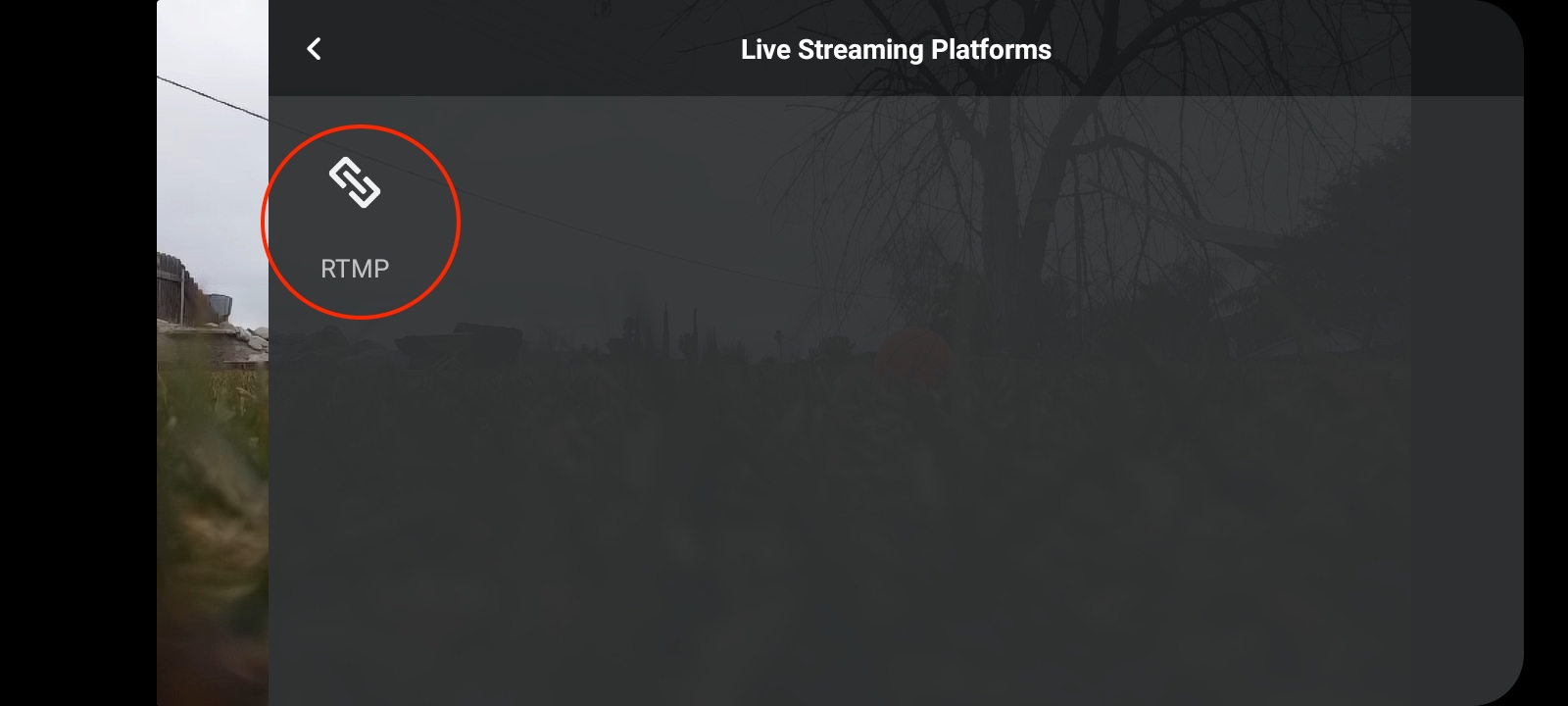
Choose the **RTMP** option.
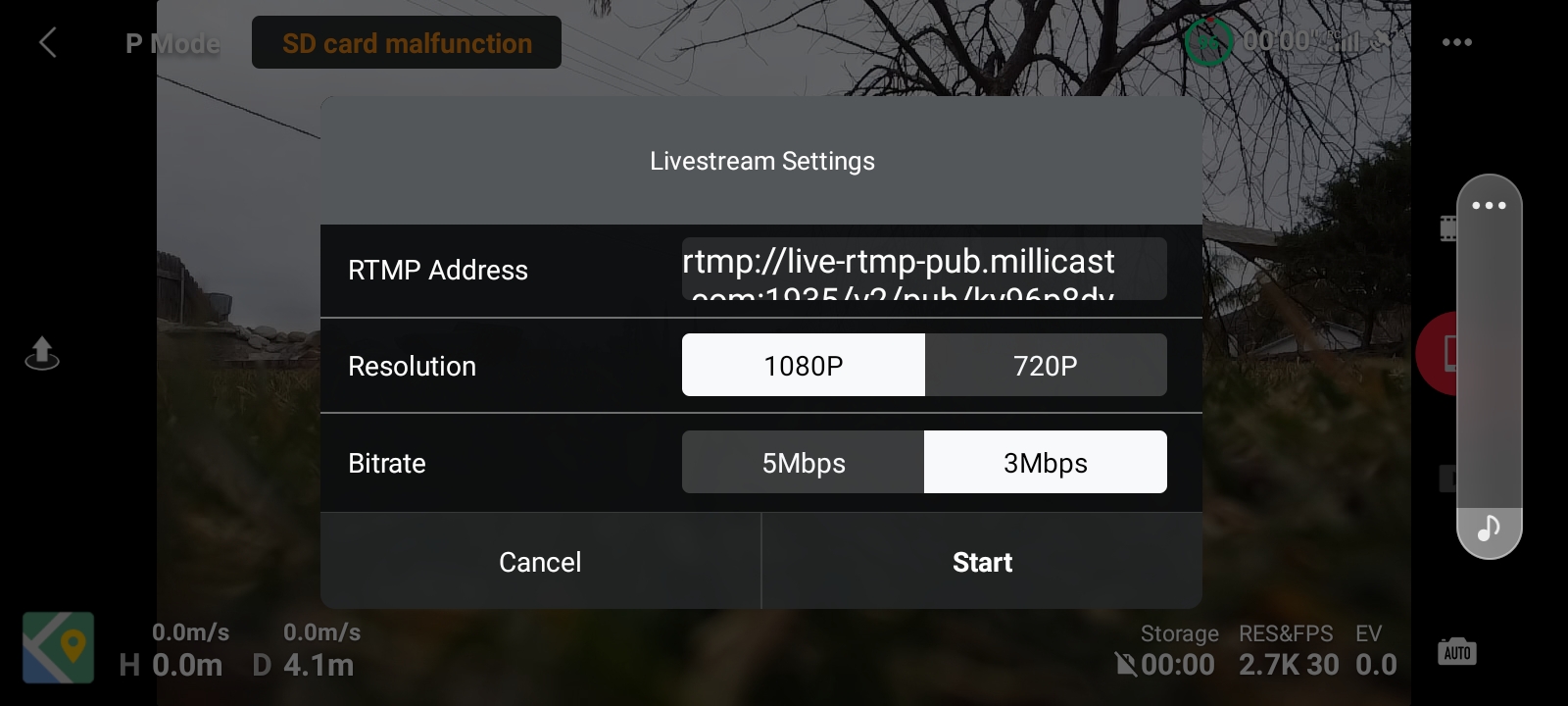
#### 4. Enter Livestream settings
> **OptiView Real-time Streaming Dashboard - Publish Token Details**
>
> You will need to have your OptiView **publishing token** and **stream name** in order to complete this setup. See the [Getting Started](https://docs-preview.optiview.dolby.com/pr-863/millicast/getting-started/using-the-dashboard.md) guide for instructions on creating a new app for the first time. You will also need the **RTMP publish path** from the *Publishing* tab in the OptiView Real-time Streaming Dashboard. See the [RTMP](https://docs-preview.optiview.dolby.com/pr-863/millicast/broadcast/rtmp-and-rtmps.md) guide for more detail on where to find it.
For the Livestream settings, you must provide a URL for the **RTMP Address**. This is constructed from a few of your publisher token settings gathered from the OptiView Real-time Streaming Dashboard.
> `RTMP publish path` + `/` + `RTMP publish stream name`
Note that the **RTMP publish stream name** is already a concatenation of the *publishing token* and *stream name*. Typically this will look something similar to:
```text
rtmp://rtmp-auto.millicast.com:1935/v2/pub/${streamName}?token=${publishToken}
```
#### 5. Tune settings
Choose a *Resolution* and *Bitrate* that meets your needs, and then select the **Start** button to begin the live stream. These settings will typically persist so that you don't have to configure each flight.
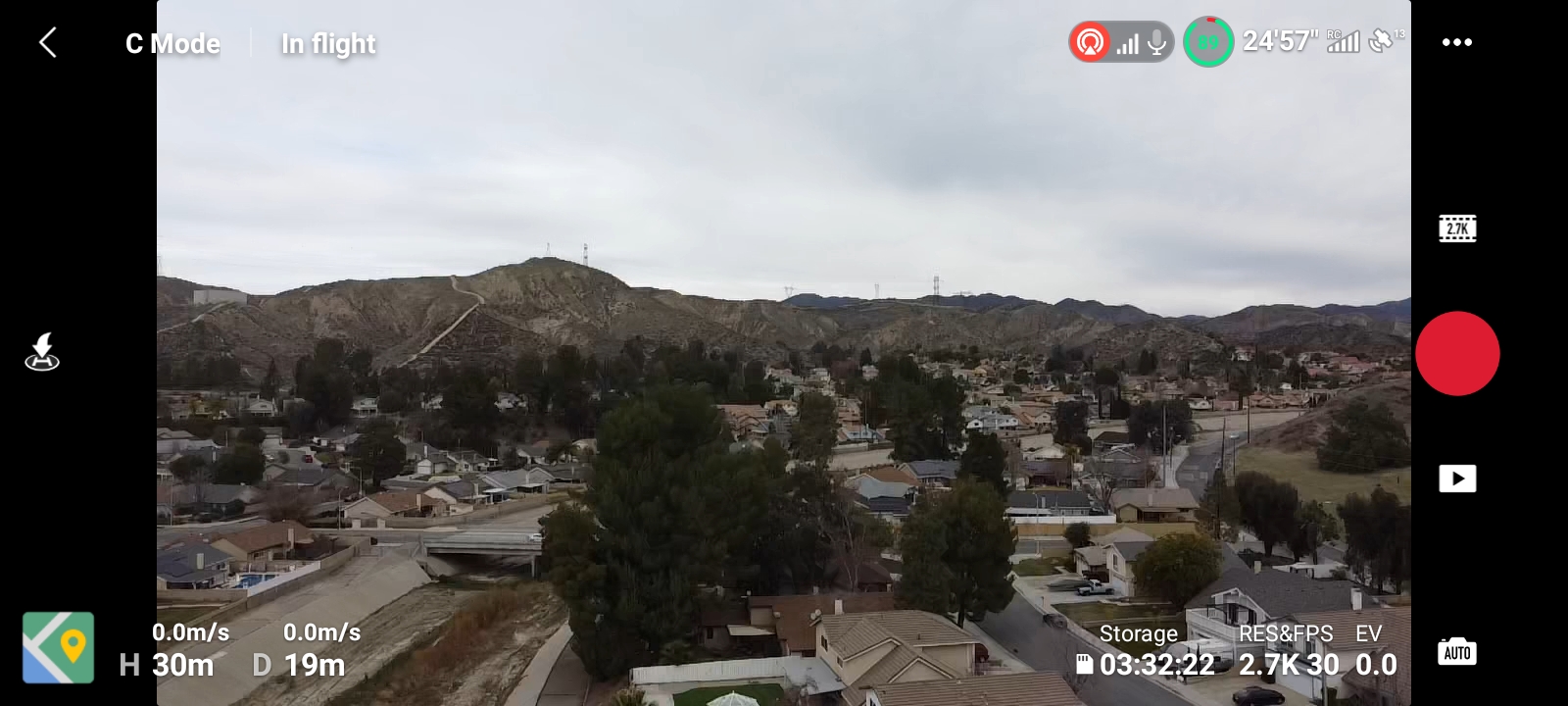
After a countdown, you will see your live stream icon as active on the top of the application.
#### Viewing
You can now share your viewer link provided from your OptiView developer portal under the API tab.
Example:
### Record drone footage
By configuring your publish token to [record](https://docs-preview.optiview.dolby.com/pr-863/millicast/distribution/stream-recordings.md) footage you can maintain a copy of anything that is captured to your [OptiView Recording Archive](https://docs-preview.optiview.dolby.com/pr-863/millicast/distribution/stream-recordings.md). This feature can incur additional charges.
#### Video: Real-time Streaming drone latency test
This example demonstrates an archive recording captured from a DJI Mavic for a 1920x1080 latency test.
[YouTube video player](https://www.youtube.com/embed/44GWULy5Jlw)
### Additional options to capture and publish your drone live stream
#### Controller or receiver with HDMI output
Several drone providers, including enterprise level drones, have hardware devices that include video outputs allowing you to stream using any hardware or software encoder.
The devices shown have HDMI outputs that provide multiple options to broadcast your drone's live stream.
This option allows near real time live-streaming with additional codec options, quality settings or simulcast options.
Streams can also benefit from constrained network environments with these options.
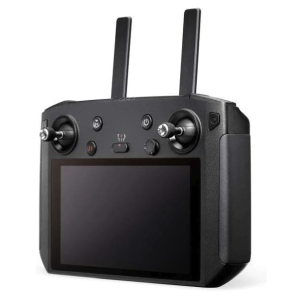
*DJI Smart Controller*
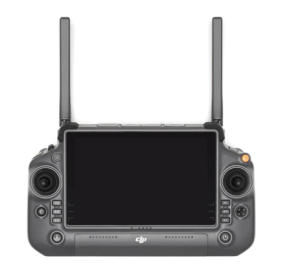
*DJI Enterprise Plus Controller*
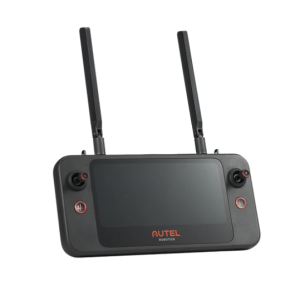
*Autel Drones Smart Controller*
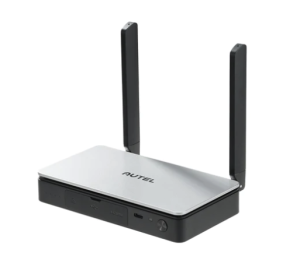
*Autel Live Deck*
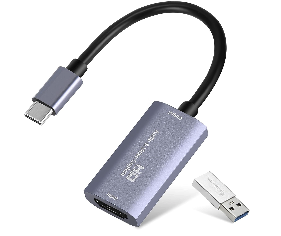
Connect to a PC or Mobile device a simple HDMI capture device can be used.
#### Publishing options
Web based broadcaster
1. Web Based publisher with additional codecs can take advantage of low-bandwidth environments while still publishing an HD stream to your audience at sub-second latency.
2. OBS WebRTC allows transmission of drone streams with advanced codecs.
OBS WebRTC with VP9 or AV1 can take advantage of low-bandwidth environments while still publishing an HD stream to your audience at sub-second latency.
3. Mobile device with Web broadcaster.
4. Hardware Encoder
#### Learn more
Once you have configured your camera for capture, visit the [broadcast](https://docs-preview.optiview.dolby.com/pr-863/millicast/broadcast.md), [distribution](https://docs-preview.optiview.dolby.com/pr-863/millicast/distribution.md), and [playback](https://docs-preview.optiview.dolby.com/pr-863/millicast/playback.md) guides to complete your project.
If you have a different type of drone than the ones listed, reach out to our [support team](https://support.dolby.io/) to ask about compatibility.