# Magewell
**Magewell** is a leading encoder manufacturer that supports connecting to the Dolby OptiView Streaming platform for broadcasting live streams. This guide outlines how to broadcast streams from a [Magewell](https://www.magewell.com/) device to the Dolby OptiView platform.
See the official [Magewell site](https://www.magewell.com/support-contacts) for documentation, installation instructions, and additional support.
## Ultra Encode
The [Magewell Ultra Encode](https://www.magewell.com/ultra-encode) supports broadcasting RTMP streams, which can be ingested by the Dolby.io Real-time Streaming service.
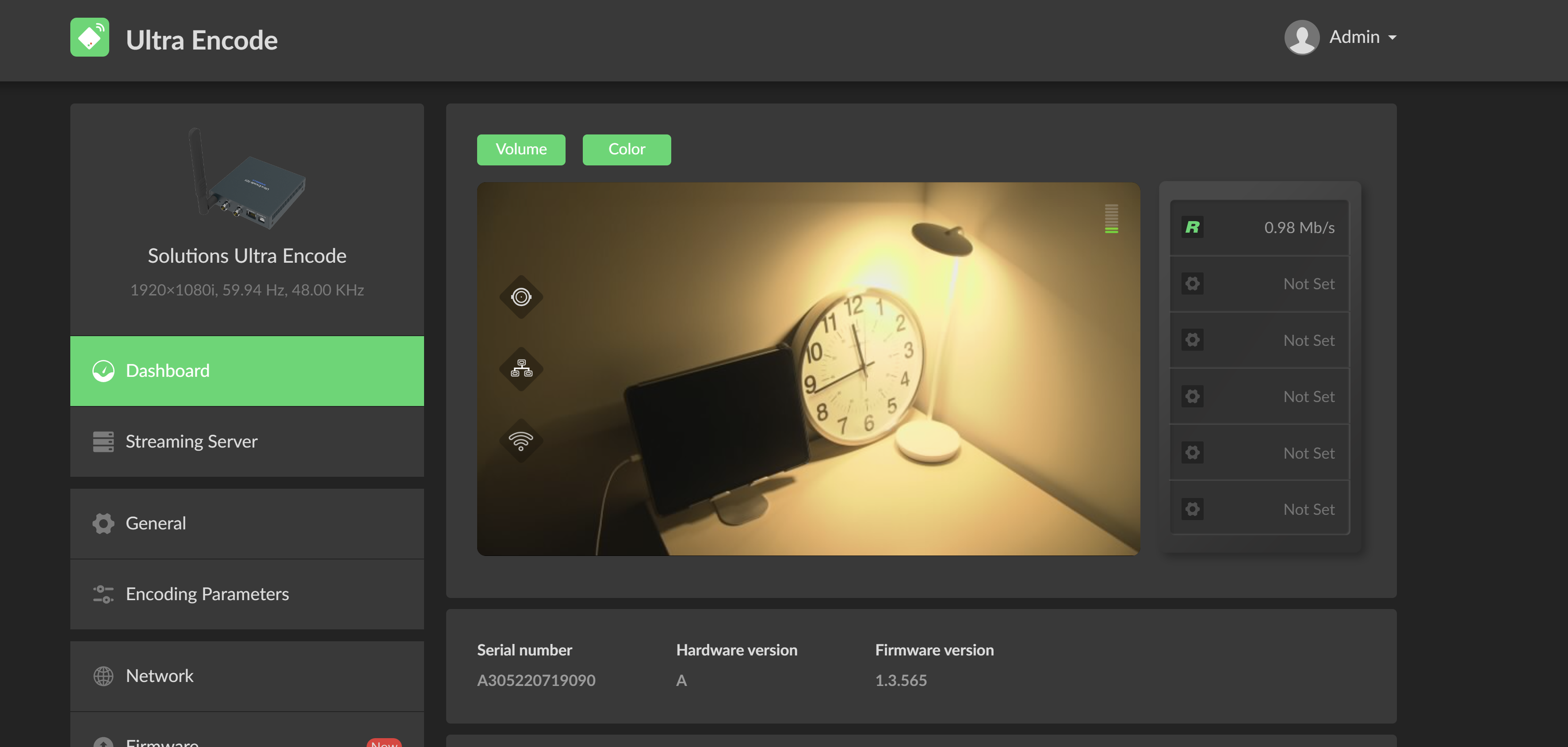
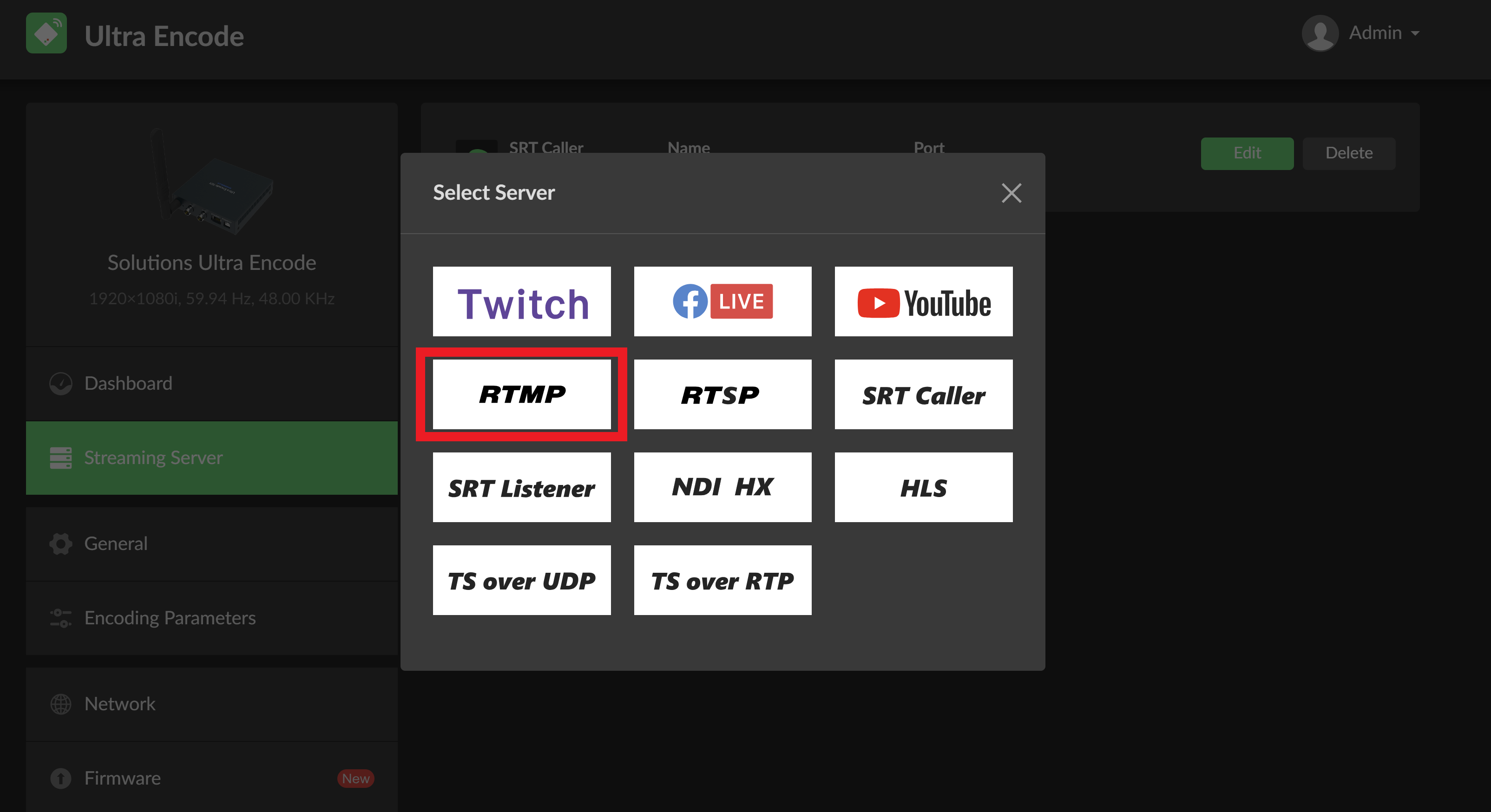
To begin, first power on your Ultra Encode, connect it to the internet (Ethernet or WiFi), and connect your video capture device. Once connected, [log in](https://www.magewell.com/files/documents/User_Manual/ultra_encode_user_manual_en.pdf) to the Ultra Encode dashboard and navigate to the `Streaming Server` tab on the left side panel. Inside of `Streaming Server` click the `+ Add Server` button and select `RTMP`.
* For the `URL` select `rtmps://` and enter the **URL** of the channel.
RTMP URL: `rtmps://rtmp..theo.live/live`
* For the `Stream key` input the **Stream key** from the ingest server section.
Stream key: ``
Finally, select which network you'd like the encoder to use to connect, and save the settings.
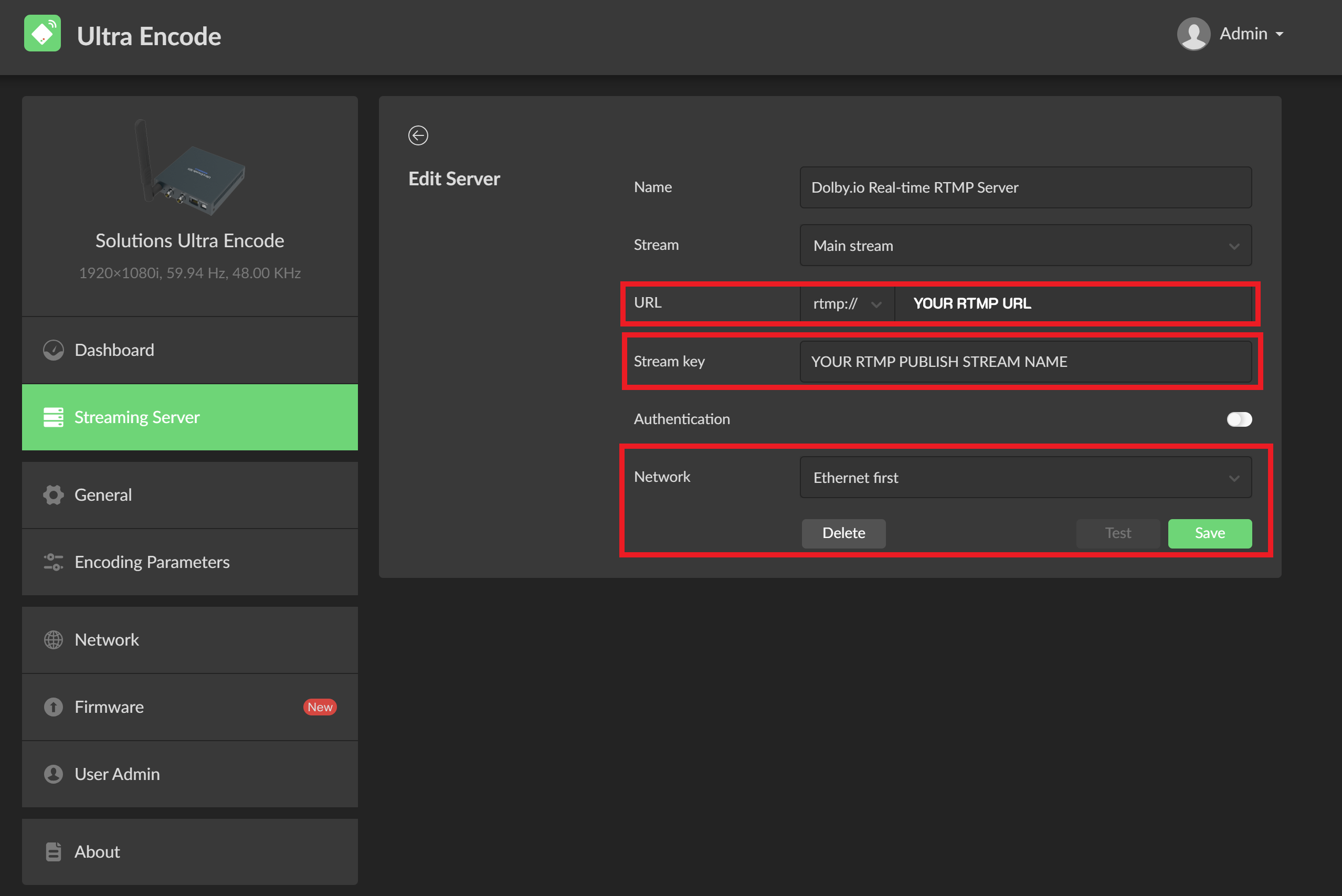
Once saved, make sure the stream is activated by toggling the server switch on the `Streaming Server` page.

With the stream enabled, you can navigate back to the main Dashboard page of the encoder and see your stream connect.