# Getting started with OptiView Ads on Web
This guide will get you started with OptiView Ads in your OptiView Player Web SDK: configure the license, update dependencies and set the source description.
## Prerequisites
1. You need to have an OptiView Player license which is compatible with OptiView Ads. This can be done through the [player portal](https://portal.theoplayer.com).
2. You need a correctly deployed [OptiView Ads signaling service](https://docs-preview.optiview.dolby.com/pr-860/ads/v1/getting-started/signaling-service.md).
3. Your THEOplayer SDK needs to have the `theoads` feature enabled.
As of OptiView Player version 8.2.0, this feature is enabled by default in the main `theoplayer` package so we recommend to use at least this version, preferably the latest available version. You can install this package with the following command:
```bash
npm install theoplayer
```
## Integration
This guide assumes you know how to set up OptiView Player. For more information regarding this, check out the [OptiView Player getting started](https://docs-preview.optiview.dolby.com/pr-860/theoplayer/getting-started/sdks/web/getting-started.md).
### Google DAI library
Since OptiView Ads integrates with Google DAI Pod Serving, it is required to load the Google DAI script on your page:
```html
```
### Player configuration
To make use of the OptiView Ads integration, first enable the feature in your player configuration:
```javascript
const player = new THEOplayer.Player(element, {
libraryLocation: 'YOUR-LIBRARY-LOCATION',
license: 'YOUR-LICENSE-WITH-OPTIVIEW-ADS',
ads: {
theoads: true,
},
});
```
Then, specify a source with an OptiView Ads-enabled ad description:
```javascript
player.source = {
sources: {
src: 'PATH-TO-SIGNALING-SERVER/hls/MANIFEST-URI',
type: 'application/x-mpegurl',
hlsDateRange: true,
},
ads: [
{
integration: 'theoads',
networkCode: 'NETWORK-CODE',
customAssetKey: 'CUSTOM-ASSET-KEY',
},
],
};
```
* Notice that the `src` is different as usual. For OptiView Ads, a signaling server needs to be set up which acts as a proxy to parse the given manifest and insert the ad interstitials. More information can be found [here](https://docs-preview.optiview.dolby.com/pr-860/ads/v1/getting-started/signaling-service.md).
* The `hlsDateRange` flag needs to be set to `true` as the ad markers are done using `EXT-X-DATERANGE` tags.
* The `ads` object needs to have its integration set to `theoads`. Furthermore, the `networkCode` and `customAssetKey` needs to be set according to your configured Google account.
## Integrating with Open Video UI
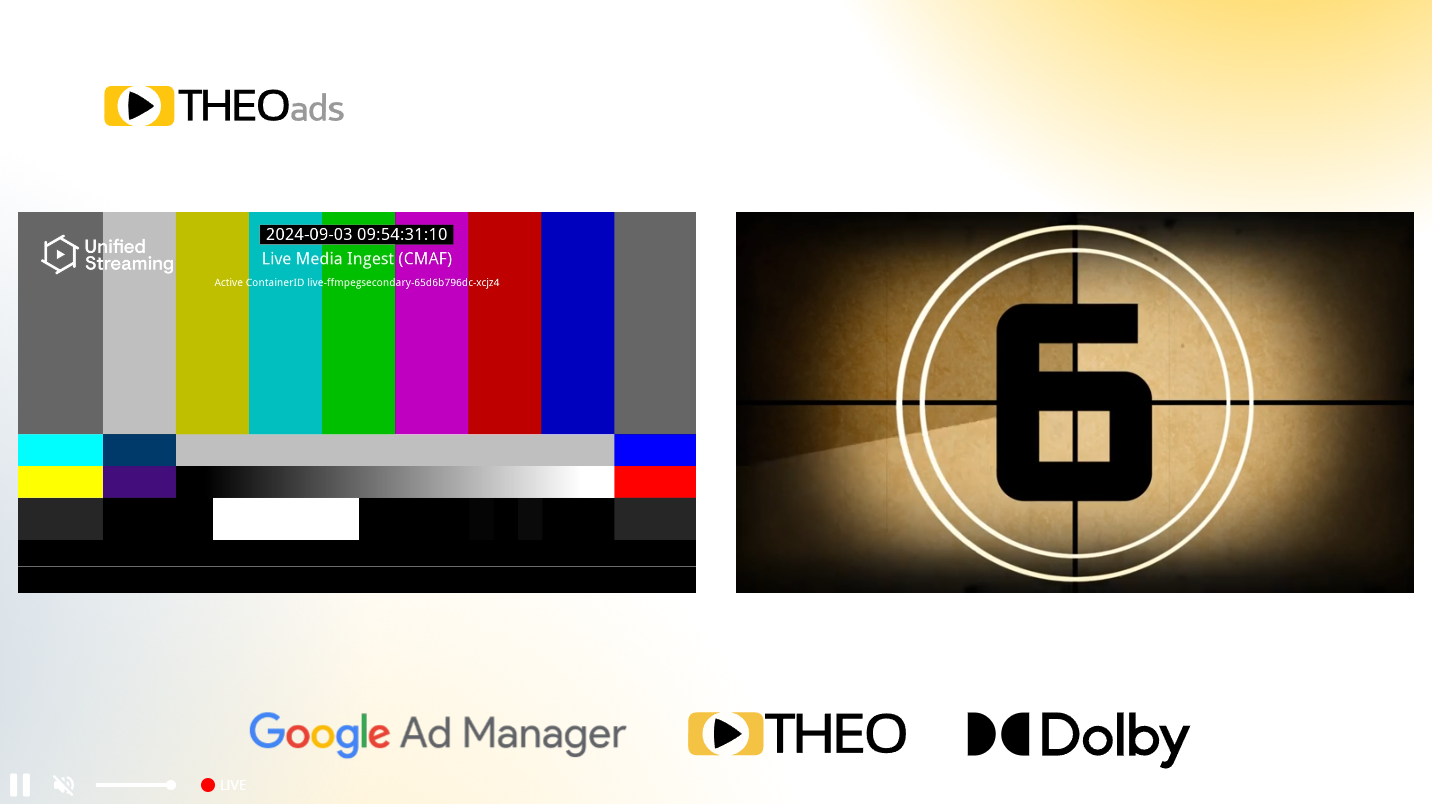
OptiView Ads works seamlessly together with [Open Video UI for Web](https://docs-preview.optiview.dolby.com/pr-860/open-video-ui/web.md). You can pass your OptiView Ads-enabled source directly to the UI's `source` property:
```html
```
It should look something like this:
## More information
* [API references](https://docs-preview.optiview.dolby.com/pr-860/theoplayer/v11/api-reference/web/interfaces/TheoAdDescription)
* [What is OptiView Ads?](https://optiview.dolby.com/products/server-guided-ad-insertion/)
* [The Advantages of Server-Guided Ad Insertion](https://optiview.dolby.com/solutions/personalized-advertising/)
* [Is Server-Guided Ad-Insertion (SGAI) revolutionizing streaming monetization? (blog)](https://optiview.dolby.com/resources/blog/advertising/what-is-sgai-server-guided-ad-insertion-in-streaming/)