Getting started with OptiView Ads on iOS
This guide will get you started to integrate OptiView Ads in your OptiView Player iOS SDK: configure the license, update dependencies and set the source description.
Prerequisites
- You need to have an OptiView Player license which is compatible with OptiView Ads. This can be done through the player portal.
- You need a correctly deployed OptiView Ads signaling service.
- Add the OptiView Player iOS SDK to your project by following our Getting started guide. Make sure to set up an OptiView Ads-compatible license in your app.
- Add the OptiView Ads integration as a dependency to your project:
- CocoaPods
- SwiftPM
- Add the
THEOplayer-Integration-THEOadspod to your Podfile:
pod 'THEOplayer-Integration-THEOads', '~> <YOUR_INTEGRATION_VERSION>'
- Install the new pod:
pod install
- Open your Xcode project and navigate to File > Add Package Dependencies...
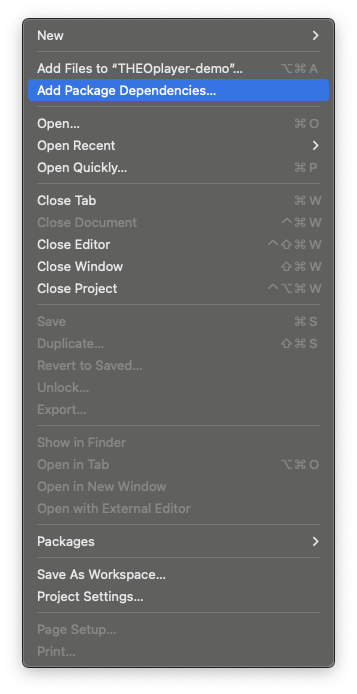
- Add
theoplayer-sdk-applepackage by entering the following url:
https://github.com/THEOplayer/theoplayer-sdk-apple
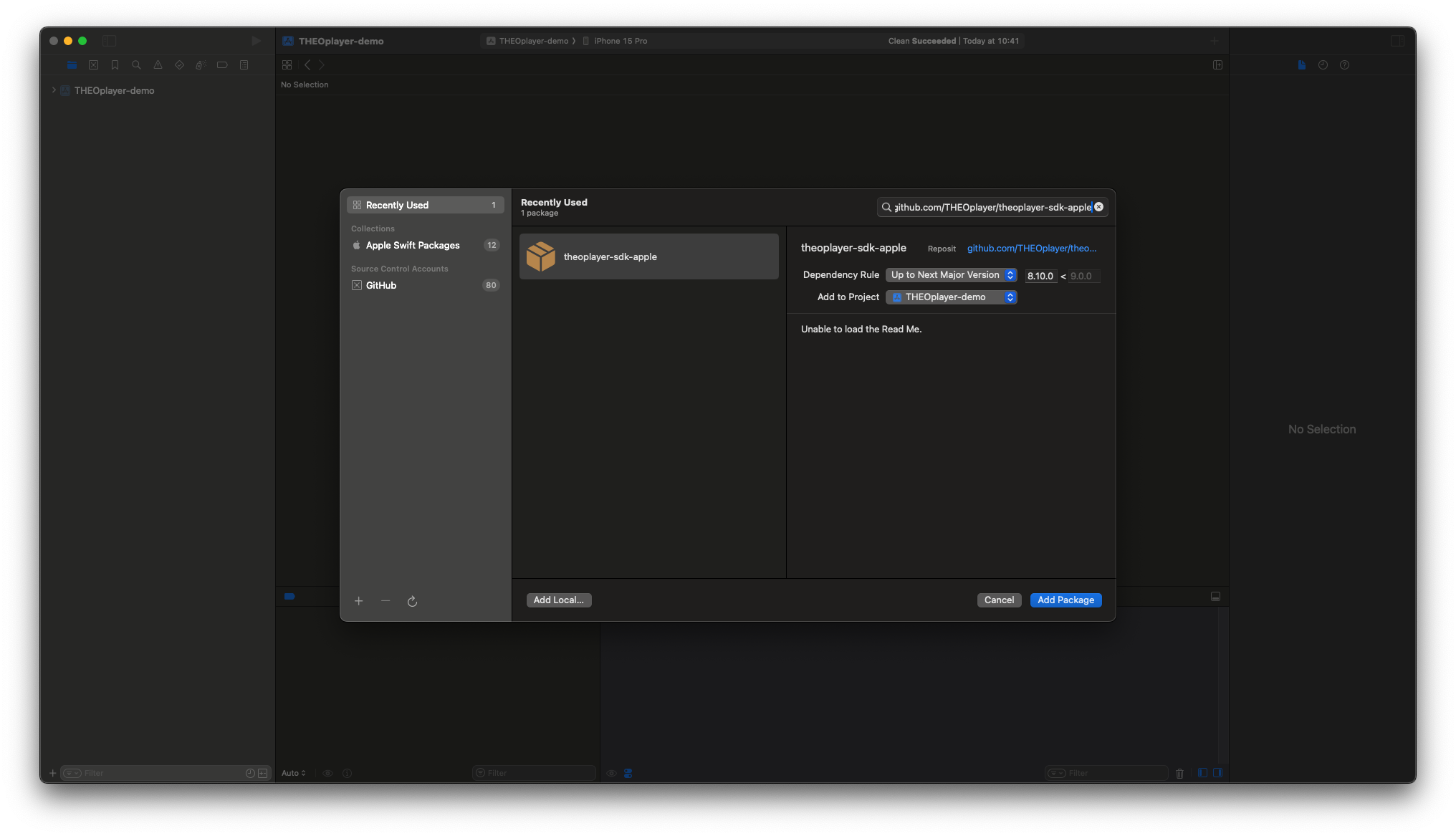
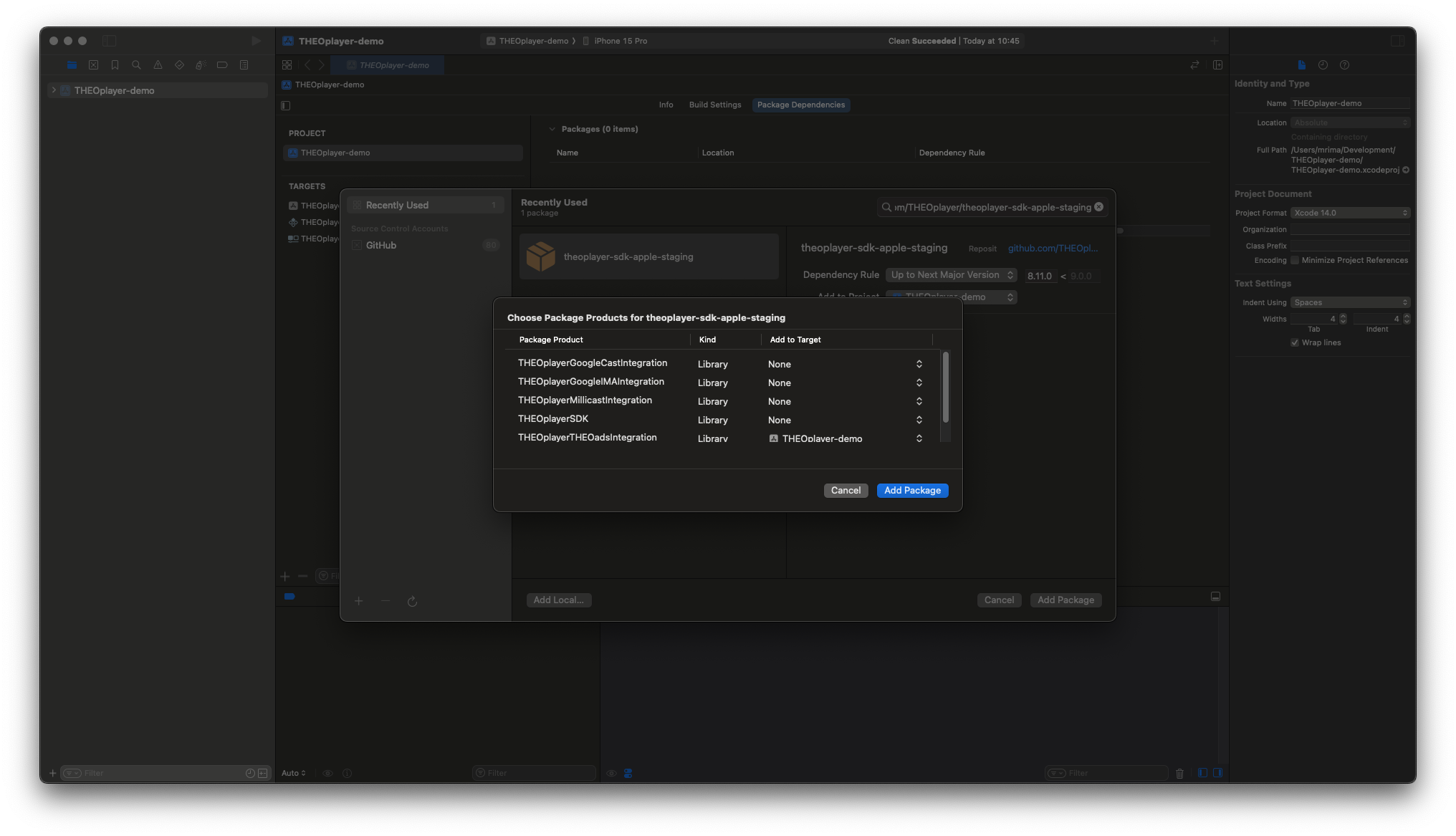
- Select
THEOplayerTHEOadsIntegrationfrom the package products list and add it to your target.
- Add Google IMA SDK as a dependency to your project:
- CocoaPods
- SwiftPM
- The
THEOplayer-Integration-THEOadspod has a dependency onGoogleAds-IMA-iOS-SDKwhich should be installed automatically.
- Open your Xcode project and navigate to File > Add Package Dependencies...
- Add
swift-package-manager-google-interactive-media-ads-iospackage by entering the following url:
https://github.com/googleads/swift-package-manager-google-interactive-media-ads-ios
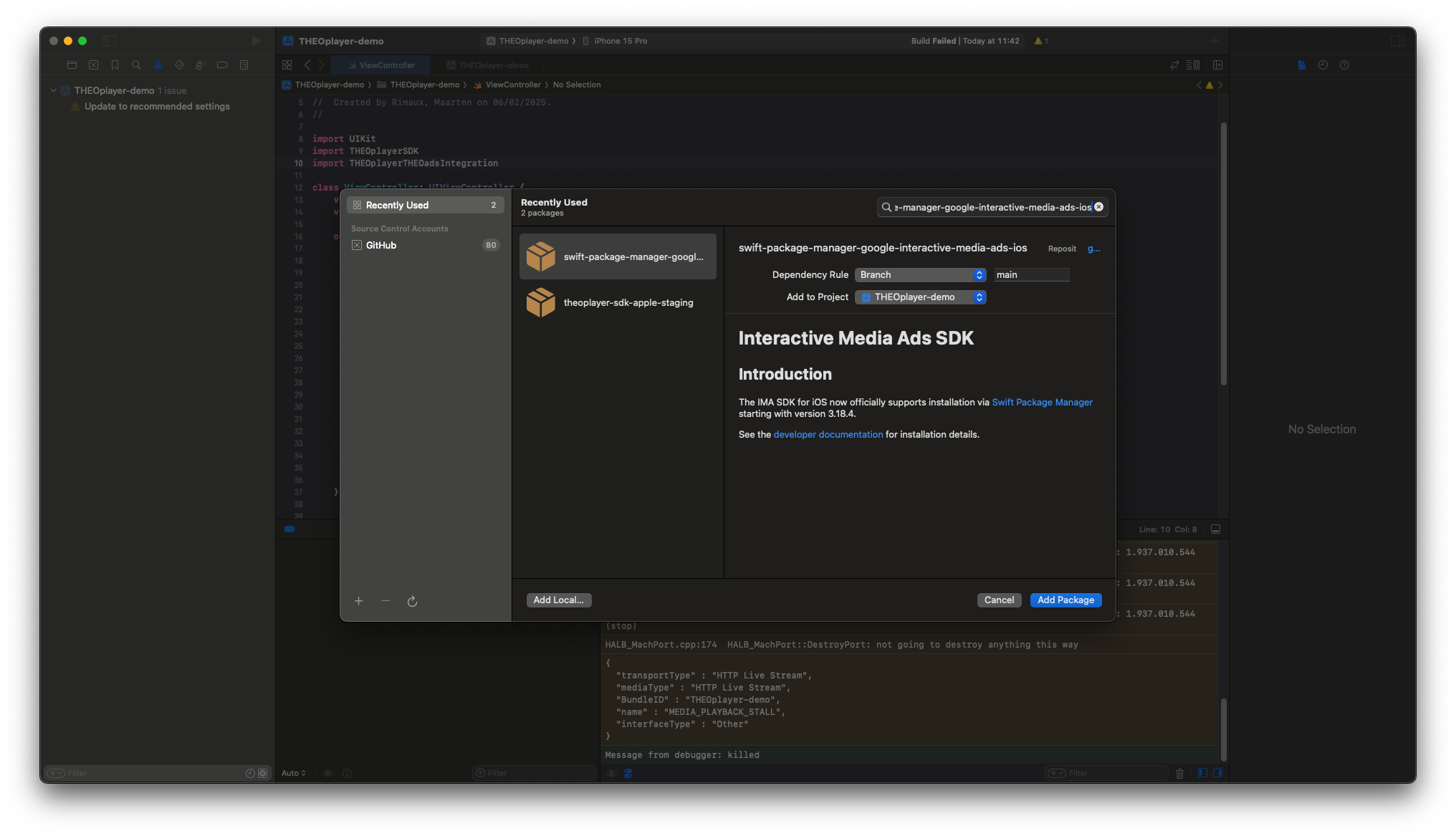
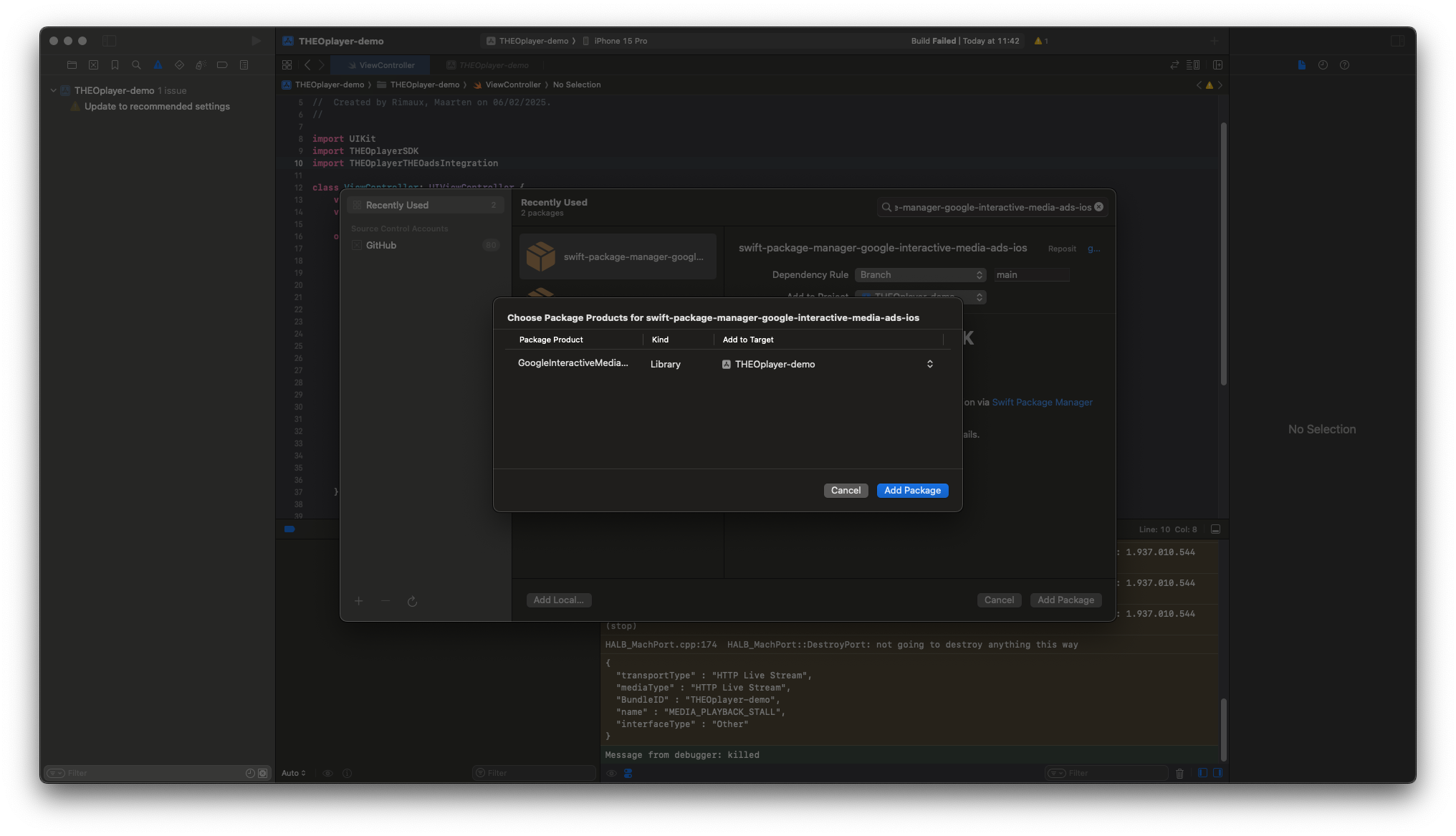
- Select
GoogleInteractiveMediaAdsfrom the package products list and add it to your target.
Integration
To make use of the OptiView Ads integration, create and add the THEOadsIntegration to your THEOplayer instance:
import UIKit
import THEOplayerSDK
import THEOplayerTHEOadsIntegration

class ViewController: UIViewController {
    var theoplayer: THEOplayer!
    var theoads: THEOadsIntegration!

    override func viewDidLoad() {
        super.viewDidLoad()
        self.theoplayer = THEOplayer(configuration: THEOplayerConfigurationBuilder().build())
        self.theoplayer.frame = view.bounds
        self.theoplayer.addAsSubview(of: view)
        self.theoads = THEOadsIntegrationFactory.createIntegration(on: self.theoplayer)
        self.theoplayer.addIntegration(self.theoads)
    }

}
Then, configure a source containing a THEOAdDescription:
import UIKit
import THEOplayerSDK
import THEOplayerTHEOadsIntegration

class ViewController: UIViewController {
    var theoplayer: THEOplayer!
    var theoads: THEOadsIntegration!

    override func viewDidLoad() {
        super.viewDidLoad()
        self.theoplayer = THEOplayer(configuration: THEOplayerConfigurationBuilder().build())
        self.theoplayer.frame = view.bounds
        self.theoplayer.addAsSubview(of: view)
        self.theoads = THEOadsIntegrationFactory.createIntegration(on: self.theoplayer)
        self.theoplayer.addIntegration(self.theoads)

        let source = "PATH-TO-SIGNALING-SERVER/hls/MANIFEST-URI"
        let typedSource = TypedSource(
            src: source,
            type: "application/x-mpegurl",
            hlsDateRange: true
        )
        let theoad = THEOAdDescription(
            networkCode: "NETWORK-CODE",
            customAssetKey: "CUSTOM-ASSET-KEY"
        )
        let sourceDescription = SourceDescription(source: typedSource, ads: [theoad])
        self.theoplayer.source = sourceDescription
        self.theoplayer.play()
    }

}
- Notice that the
srcis different as usual. For OptiView Ads, a signaling server needs to be set up which acts as a proxy to parse the given manifest and insert the ad interstitials. More information can be found here. - The
hlsDateRangeflag needs to be set totrueas the ad markers are done usingEXT-X-DATERANGEtags. - The
adsarray needs to contain aTHEOAdDescription. Furthermore, thenetworkCodeandcustomAssetKeyneeds to be set according to your configured Google account.