OptiView Ads on iOS
This guide configures OptiView Ads in the OptiView Player iOS SDK. Version 11.9.x or later is required.
Prerequisites
- Obtain an OptiView Player license compatible with OptiView Ads from the player portal.
- Retrieve the Break Manifest URL for your channel. See the Break Manifest endpoint.
- Add
THEOplayer-Integration-THEOadsto your project.
- CocoaPods
- SwiftPM
pod 'THEOplayer-Integration-THEOads', '~> 11.9'
Add https://github.com/THEOplayer/theoplayer-sdk-apple and select THEOplayerTHEOadsIntegration.
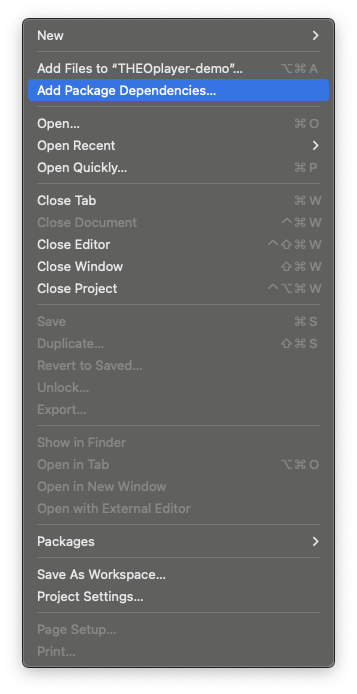
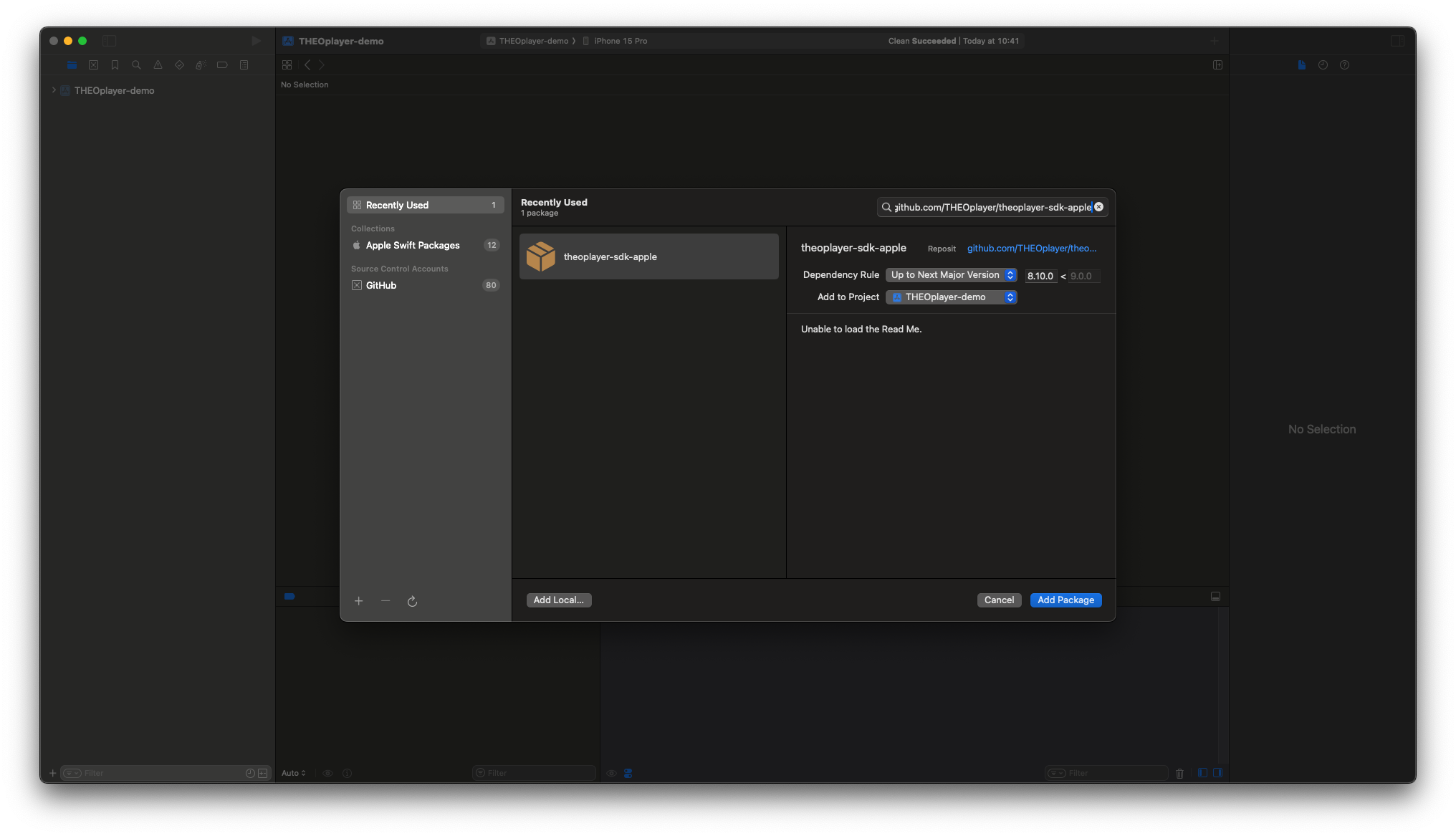
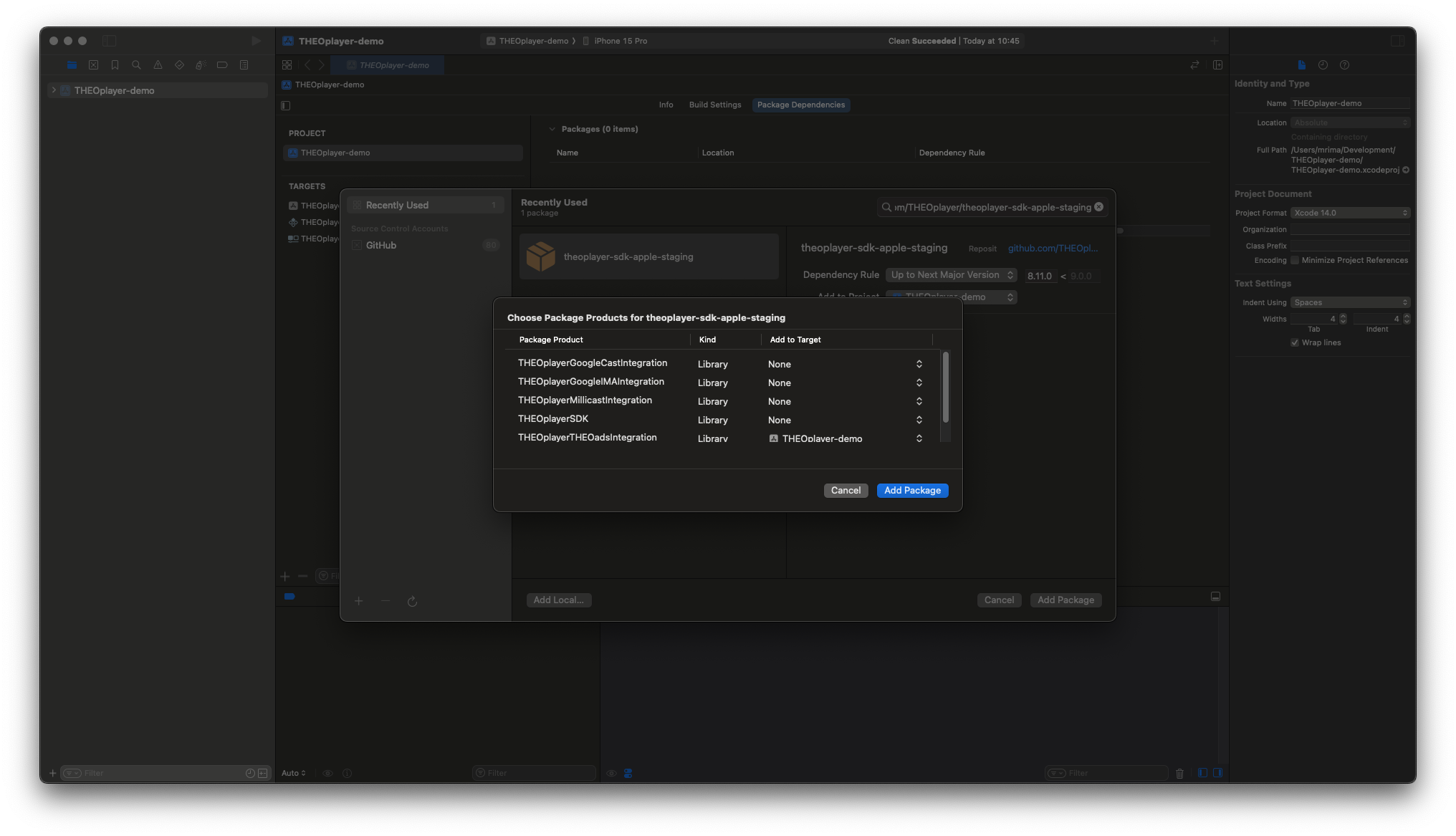
-
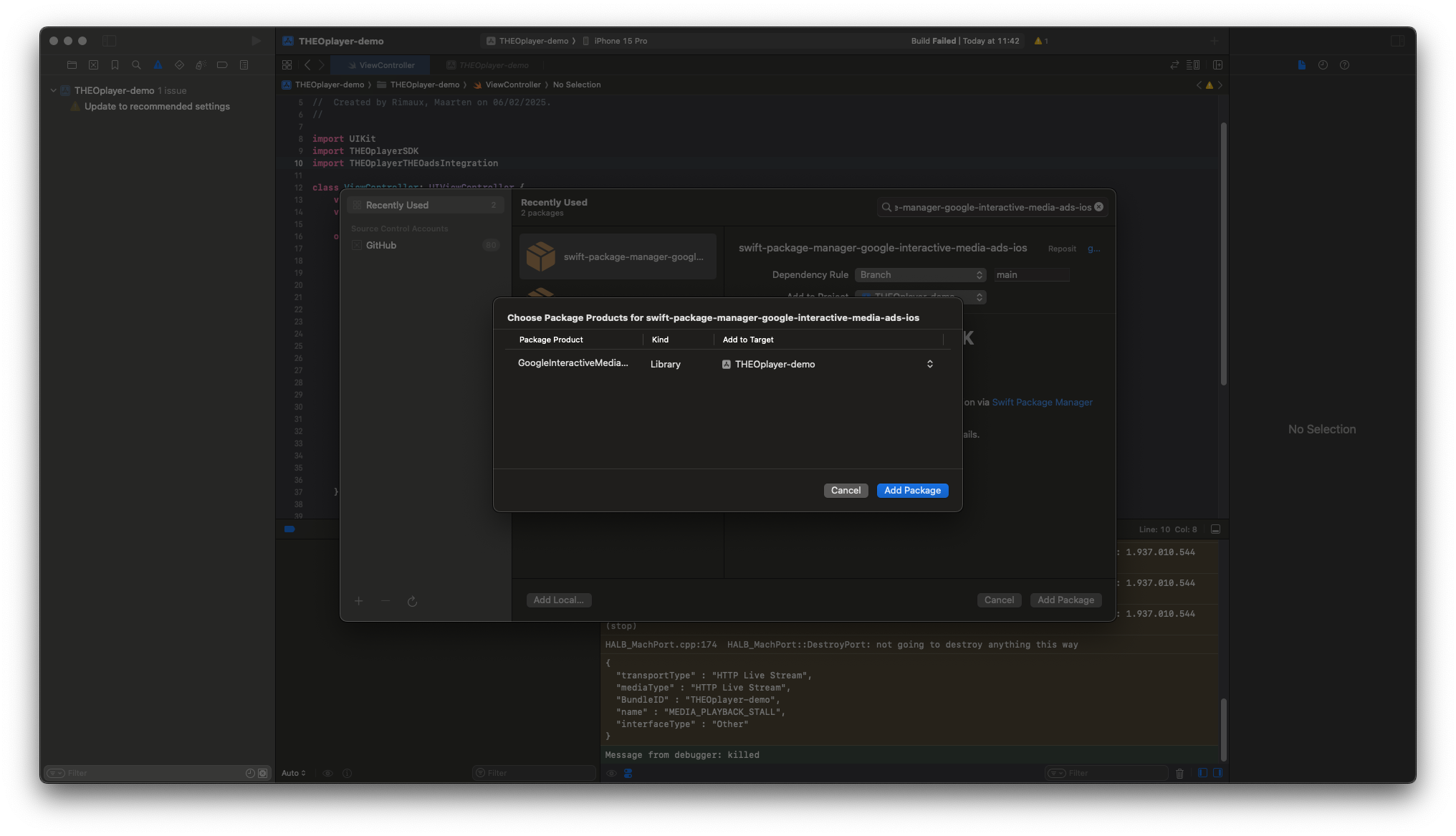
Add Google IMA. CocoaPods uses
GoogleAds-IMA-iOS-SDK; SwiftPM uses theGoogleInteractiveMediaAdsproduct.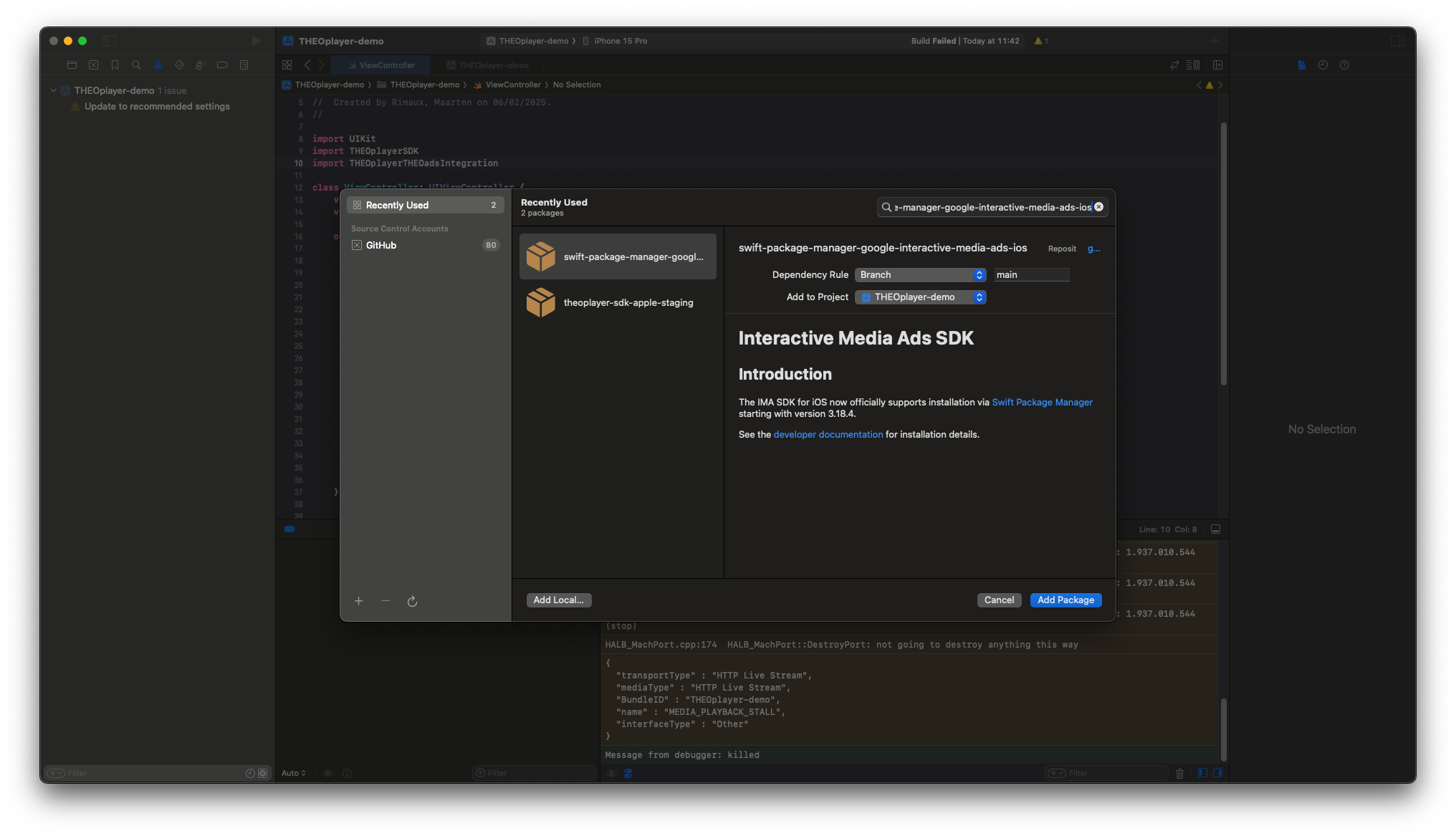
Step 1 — Enable OptiView Ads
Create the OptiView Ads integration and add it to the player:
import THEOplayerSDK
import THEOplayerTHEOadsIntegration

let theoads = THEOadsIntegrationFactory.createIntegration(on: theoplayer)
theoplayer.addIntegration(theoads)
Step 2 — Configure the OptiView Ads source
Set a source that combines your media stream with a THEOAdDescription:
let typedSource = TypedSource(
    src: "YOUR-STREAM-URL",
    type: "application/x-mpegurl"
)
let theoad = THEOAdDescription(
    networkCode: "NETWORK-CODE",
    customAssetKey: "CUSTOM-ASSET-KEY",
    breakManifestUrl: URL(string: "https://us.markers.optiview.dolby.com/manifest/v1/ORG-ID/channels/CHANNEL-ID"),
    adTagParameters: ["key": "value"]
)
theoplayer.source = SourceDescription(source: typedSource, ads: [theoad])
The media source itself is not important to OptiView Ads: it only needs to carry timing information (such as EXT-X-PROGRAM-DATE-TIME) that the player can schedule breaks against.
The ad description properties:
breakManifestUrl— the channel's Break Manifest URL. This is the most important part: it is where the player learns about the channel's breaks.networkCode— your Google Ad Manager network code, for Google Pod Serving. See the Google Ad Manager prerequisites.customAssetKey— the channel's custom asset key, for Google Pod Serving.adTagParameters— player-side ad tag parameters for Google Pod Serving. Use these for values that are only known on the device, such as device identifiers; they override the break'sassetParameterson duplicate keys.
Step 3 — Verify playback
Start playback, then schedule a break through the API or dashboard and confirm that the ad plays out.