UI on Web
THEOplayer lets you build the video player UI that fits your application. You can use a ready-made UI and customize it, or build a brand-new chromeless UI from scratch.
Building a chromeless UI means building a new UI from scratch using the THEOplayer API and custom application code.
In other words: you are responsible for inserting your own controls (e.g. a play button),
and connecting them with the THEOplayer API (e.g. player.play()).
A chromeless UI gives you total control over your UI and UX,
but it requires an understanding of video playback and of the THEOplayer API.
Default UI versus chromeless UI
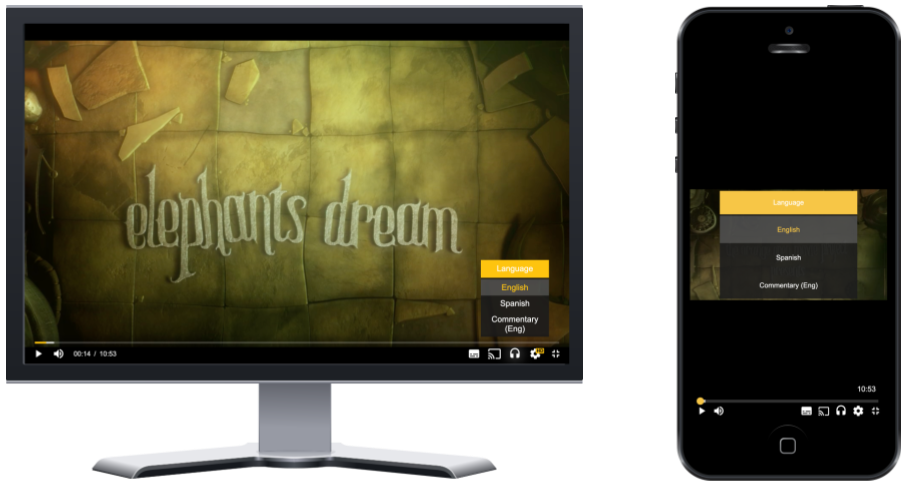
The Web SDK ships a default UI. The default UI is responsive and optimized for browsers, mobile devices and tablets, and it has all the basic controls you'd expect from a video player, ranging from a scrub bar to a fullscreen button.
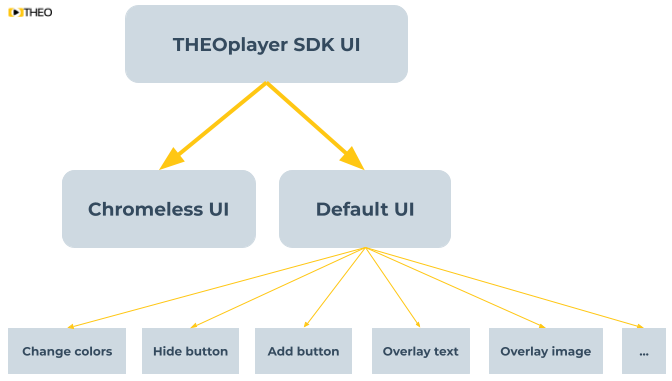
As a developer, you may use this UI as is, customize it, or create a brand-new chromeless UI, as depicted in the screenshot below.
It's possible that the envisioned design of your video player looks different from THEOplayer's default UI. When that happens, your team has to decide whether to customize THEOplayer's default UI, or to implement a chromeless UI.
The default UI has all the basic functionality you expect from a video player, but it might be missing some more exotic UI (or UX) features. Changing the colors of the default UI is relatively straightforward, as is hiding a default control item (e.g. the fullscreen button), as is inserting a new button in the default control bar. However, truly transforming the default UI, such as repositioning elements, using all new icons, and more complex operations, can be quite challenging.
Implementing a chromeless UI gives you total control of your UI and UX. However, this requires an understanding of video and the THEOplayer API, and you might feel like you're reinventing the wheel.
So what to pick: modify the default UI or implement a chromeless UI?
If the envisioned design looks "quite different" from the default UI, we encourage people to implement a chromeless UI. Alternatively, if that isn't an option, we advise people to compromise, and to adapt their envisioned design to look "quite similar" to the default UI.
Our default UI is not optimized for big screen devices like Samsung Tizen, LG webOS and Android TV. If you're targeting those (and similar devices), you should consider implementing a chromeless UI, as demonstrated on our Tizen and webOS Github repositories.
Note that some features are dependent on our default UI, because they are built on top of our default UI. For example, the Up Next feature (and API) wouldn't work when you build a chromeless UI.
Alternatively, you can also use Open Video UI for Web, a set of UI components which you can compose and style to build your own UI.
Modify the default UI
You can modify the default UI through JavaScript and CSS.
Changing the colors is quite easy. You can use the tool at https://demo.theoplayer.com/ui-skinning to interactively change the colors and generate the matching CSS. More information on changing the colors is available at our article on UI skinning.
The default UI is a fork of Video.js 5, so you may also use the Video.js 5 API to modify the UI, as demonstrated in some of our articles. This may - for example - simplify the process of adding a new button to the default control bar.
Removing a button is a matter of identifying the appropriate CSS selector, and configuring display: none!important.
Overlaying text and images is a matter of overlaying a custom <div> on top of the THEOplayer container.
Related articles
Below are some articles related to modifying our default UI:
- How to remove an element from the UI
- How to align the timeline in the middle
- How to change the big play button
- How to keep the control bar always visible
- How to detect the visibility of the control bar
- How to hide or disable the Google IMA UI
- How to insert a button
- How to change the UI language
- How to customize the UI during ad playback
- How to change how a video should fit inside a container
- How to make an audio-only player
- How to customize the volume slider
- How to disable click to pause
- UI skinning
Implement a chromeless UI
Building a chromeless UI may be daunting at first, but it's rewarding. A chromeless UI gives you full control over your UI and UX, but you must understand the flow of a video, its API and its events.
Refer to our article on how to build a chromeless UI for more information.