How to detect the visibility of the control bar on Web
This question is typically asked by developers that want to insert a custom element that should
- disappear when the default control bar disappears,
- appear when the default control bar appears.
This article discusses three approaches that allow you to detect whether the control bar is visible.
Using a chromeless UI
Instead of making the default THEOplayer UI fit your use cases, it might make sense to opt for a chromeless UI. When you use a Chromeless UI, you have full control over the UI and UX, and you are not restricted to the complexities of our default UI.
Using a MutationObserver
You can use a MutationObserver to detect the visibility of the control bar.
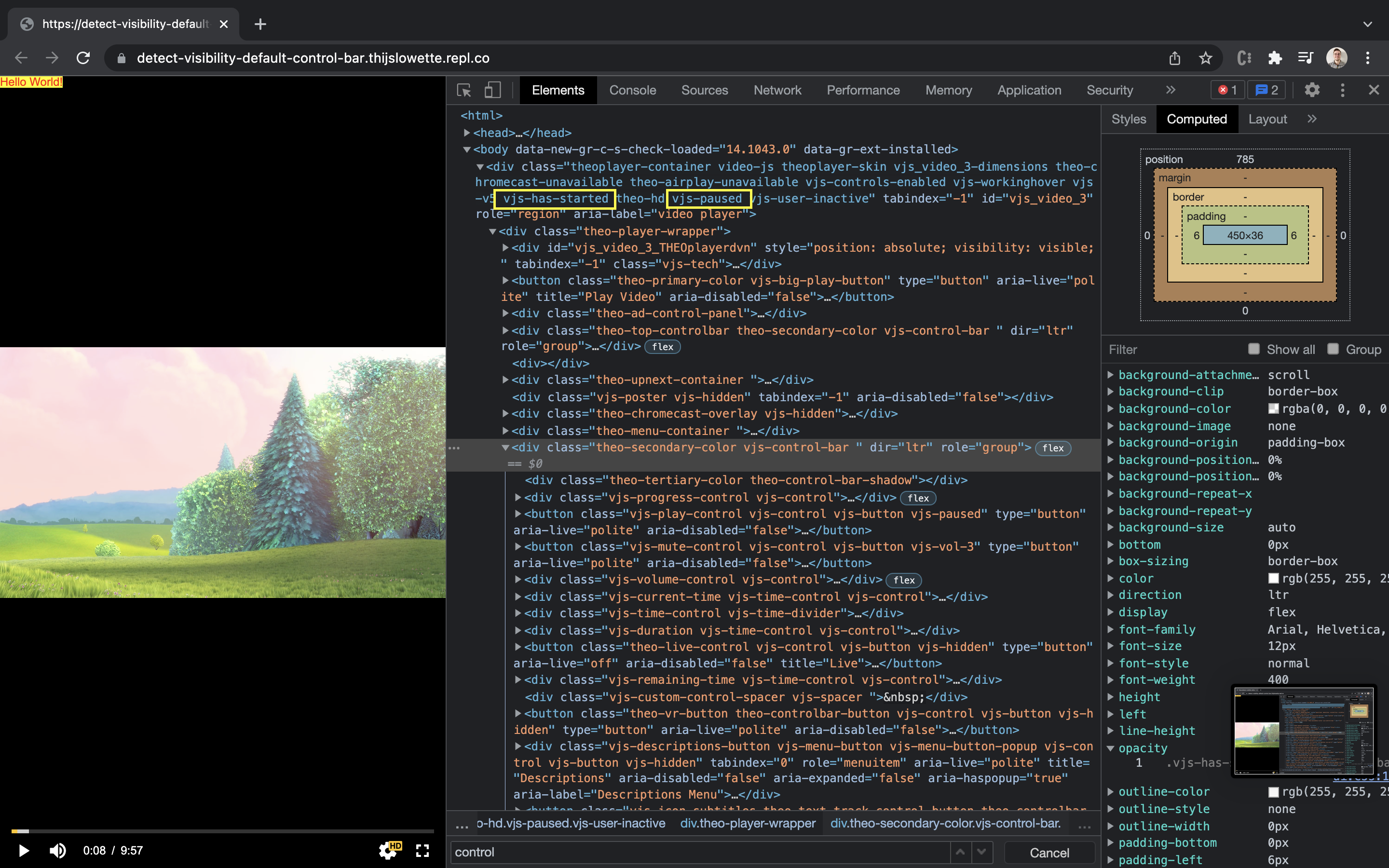
Generally speaking, the default control bar is visible when the following scenario is true for your THEOplayer container's classList:
- The
vjs-user-activeclass is listed in theclassList; - Or if the
vjs-pausedclass is listed in theclassList; - And the
vjs-has-startedclass is listed in theclassList.
The control bar is visible in the screenshot below because vjs-paused and vjs-has-started are classes of the THEOplayer container,
as highlighted with the yellow rectangles.
If we map that to JavaScript code:
const theoplayerContainer = document.querySelector('.video-js');
const controlBarVisible =
  (theoplayerContainer.classList.contains('vjs-user-active') || theoplayerContainer.classList.contains('vjs-paused')) &&
  theoplayerContainer.classList.contains('vjs-has-started');
It should be noted that this approach does not take the opacity of the control bar into account. The default control bar UI has a "fade in" and "fade out" effect. If you want to take this into account, you can capture its opacity through JavaScript when you have a reference to your control bar DOM element. The snippet below illustrates how you could poll the opacity every 100ms.
setInterval(function () {
  const controlBar = document.querySelectorAll('.vjs-control-bar')[1];
  const controlBarOpacity = getComputedStyle(controlBar).opacity;
  console.log('control bar opacity', controlBarOpacity);
}, 100);
The snippet below demonstrates how use the previously specified controlBarVisible variable in combination with a MutationObserver.
const theoplayerContainer = document.querySelector('.video-js');
var controlBarObserver = new MutationObserver(function (event) {
  for (let i = 0; i < event.length; i++) {
    const el = event[i].target;
    const controlBarVisible =
      (el.classList.contains('vjs-user-active') || el.classList.contains('vjs-paused')) && el.classList.contains('vjs-has-started');
    const message = {
      controlBarVisible: controlBarVisible,
    };
    console.log(message);
  }
});
controlBarObserver.observe(theoplayerContainer, {
  attributes: true,
  attributeFilter: ['class'],
  childList: false,
  characterData: false,
});
You can try out this snippet at https://detect-visibility-default-control-bar--thijslowette.repl.co/,
and verify the {"controlBarVisible": true} (or {"controlBarVisible": false}) logs in the developer console.
Using CSS
If you insert your custom elements through JavaScript, you can use CSS queries to align the visibility of your custom controls with the default control bar.
The snippet at https://detect-visibility-default-control-bar--thijslowette.repl.co/
has a text ("Hello World!") that's only visible when the control bar is visible.
We also leverage the vjs-has-started, vjs-paused and vjs-user-active classes mentioned in the previous approach.