How to build a chromeless UI on Web
Building a chromeless UI means building a brand-new video player UI from scratch. You achieve this by implementing your own custom UI components, and by associating those components with the appropriate THEOplayer API. The screenshot below visualizes such a chromeless UI -- albeit not the most pretty one.
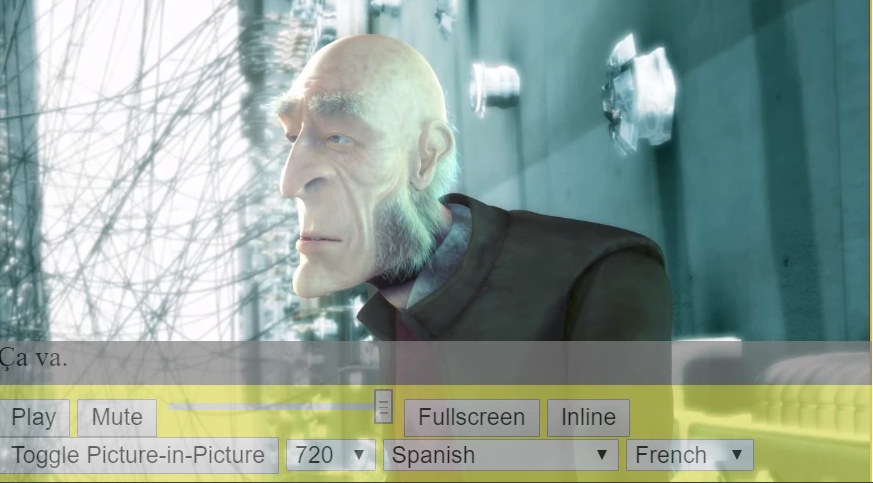
A chromeless UI gives you complete control over your full UI and UX, but it also means that you are responsible for implementing your full UI and UX. Achieving this feat requires you to have an adequate grasp on the video player architecture and its underlying API.
The goal of this guide is to advance your understanding on how to connect the dots between custom components and the THEOplayer API. For example, this guide will explain to which THEOplayer APIs you could map your custom play button.
Creating a chromeless player instance
Create a ChromelessPlayer
instead of a Player. Unlike Player, a ChromelessPlayer doesn't come with a default UI,
so you can build your own UI on top of it.
const element = document.querySelector('.theoplayer-container');
const player = new THEOplayer.ChromelessPlayer(element, {
  libraryLocation: '/path/to/your-theoplayer-folder/',
  license: 'your_license_string',
});
The rest of this article refers to this player variable.
Tracking transitions between states
Refer to the article on "How to track player states" to advance your understanding on video player states. Understanding the video player lifecycle is a vital part of building a chromeless UI.
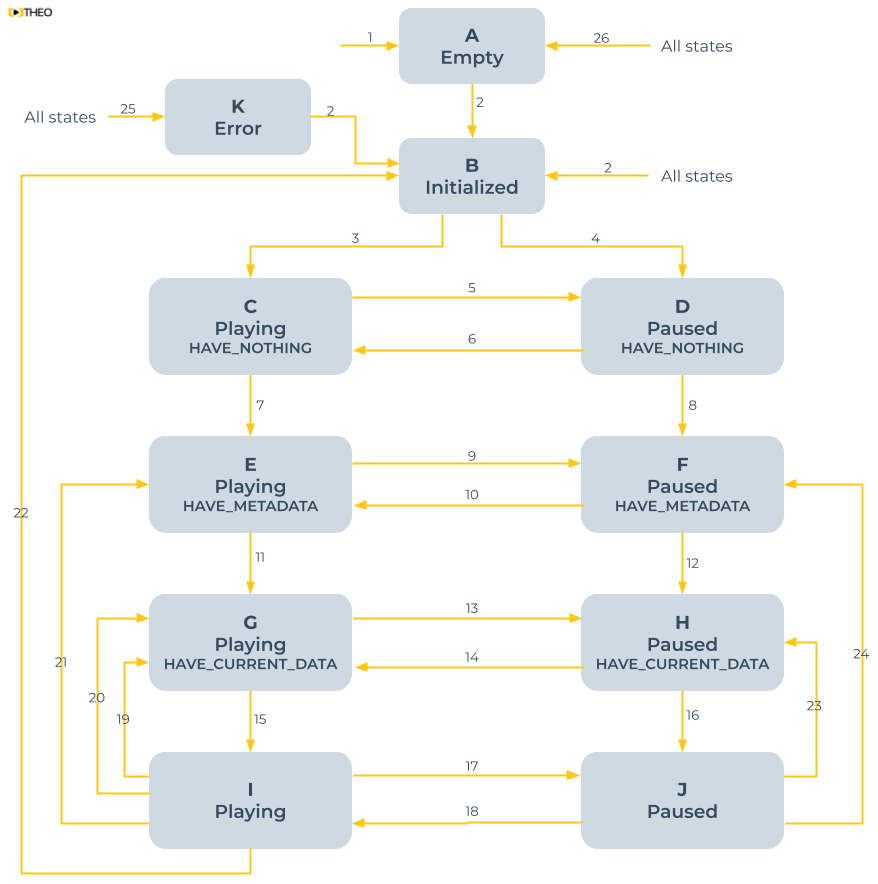
This article explains how to track the start of a video and its end, but also how to detect buffering, errors and much more. You'll need to implement (some of) these transitions in your chromeless UI in order to render the appropriate components.
Mapping components
A video player UI can be dissected into different components (or controls). A component offers context, and it may also offer an action. The "play button" is an example of an action component, but the "current time text" (X in the screenshot below) is a context component.
As a developer, you should understand which controls are out there, and which video player APIs are relevant.
This section addresses the following components:
- Play button
- Pause button
- Volume mute button
- Volume change button
- Current time text
- Duration text
- Scrub bar
- Buffered blocks
- Live button
- Audio change component
- Subtitle change component
- Video quality change component
- Fullscreen and inline button
- Picture-in-picture button
- Chromecast button
- AirPlay button
Additionally, we'll discuss the following overlays:
- Subtitle cues
- Advertisement metadata
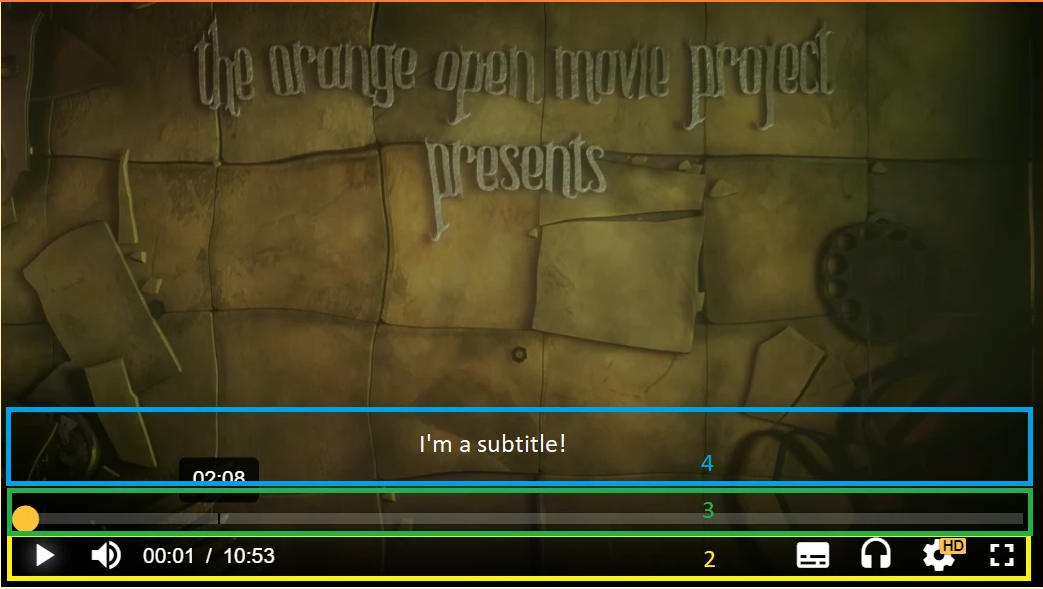
Instead of providing inline code on this article, we'll refer to other articles as much as possible, because linking the THEOplayer API to your custom components is an application of many of the existing how-to guides for a specific use-case.
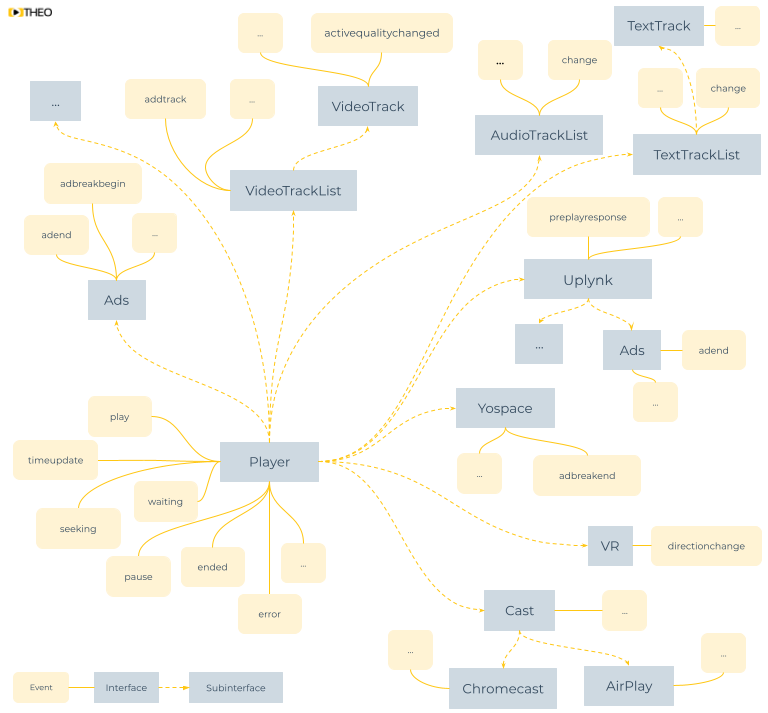
If you know how to navigate our API references, you don't even need this section. The graphic below (originally referenced in "custom analytics integration") gives a basic overview of many of the relevant interfaces and events.
Play button
You should show your play button when you are in a paused state, as described in "how to track player states".
If a viewer clicks your play button, you should call the play() on your player instance as documented in our
API reference.
Pause button
You should show your pause button when you are in a playing state, as described in "how to track player states".
If a viewer clicks your pause button, you should call the pause() on your player instance as documented in our
API reference.
Volume mute button
You can check whether your volume is muted through the muted property (or method) on your player instance as documented in
our API reference.
You should consider showing a different button depending on whether muted returns true or false.
If a viewer clicks your mute button, you should set muted to !muted.
Volume change button
You can get and set your volume level through the volume property (or method) on your player instance as documented in
our API reference.
You should consider showing a different button depending on the volume level.
Current time text
You can get the current time through the currentTime property (or method) on your player instance as documented in
our API reference.
Note that currentTime returns a relative value in seconds.
If you are dealing with live streams, you might want to use currentProgramDateTime instead, as this returns an absolute value like "2022-04-01T13:37:42.666Z".
This property (or method) is especially useful when implementing an EPG experience.
Duration text
You can get the duration of a stream through the duration property (or method) on your player instance as documented in our
API reference.
The duration will return the duration in seconds for VOD streams, and Infinity for live streams.
You can calculate the remaining duration by subtracting the currentTime from the duration.
Scrub bar
Related to the subsection on "Current time text",
you can seek to a different playhead position through the currentTime property (or setCurrentTime() method) on your player instance.
Alternatively, for live streams, you may also use currentProgramDateTime to seek to absolute playhead positions.
You can only seek to a playhead position that is within any of the time ranges of your seekable property (or method) of your player instance as documented in our
API reference.
For example, on the Web SDK, this means that you'll stay between player.seekable.start(0) and player.seekable.end(player.seekable.length-1).
You subscribe to the timeupdate event to periodically update your scrub bar bullet.
This event is dispatched every ~200ms during playback.
Refer to our API reference for more info on this event.
A seek event is dispatched when you set a new value for currentTime or currentProgramDateTime.
A seeked event is dispatched when the seek was successful.
Refer to our API reference for more info on these events.
You should consider displaying a "stalling icon" between these two events.
Buffered blocks
You may also want to annotate parts of the scrub bar that have already been buffered. When the viewer seeks to a buffered block playback immediately starts.
You can track information on what's being buffered through the progress event.
Refer to our API reference for more info on this event.
In the callback of the progress event,
you will want to query the buffered property (or method) to iterate through the available buffered time ranges.
The buffered property (or method) is described in our API reference.
Live button
A stream is a live stream when your duration property (or method) returns Infinity.
If you want to implement a button that takes you to the "most live point" when clicked,
then you set currentTime to the maximum seekable end time.
For example, on the Web SDK, you would call player.currentTime = player.seekable.end(player.seekable.length-1).
Audio change component
Refer to the article on "how to detect audio tracks" to know how to detect the available audio tracks. You'll need this article to know which audio tracks are part of your stream.
Refer to the article on "how to enable and disable audio tracks" to know how to enable or disable another audio track. You'll need this article to enable another audio track.
Refer to the article on "how to detect audio track changes" to know how to detect when an audio track has been enabled or disabled. You'll need this article to correctly annotate your UI.
Subtitle change component
Refer to the article on "how to detect text tracks" to know how to detect the available text tracks. You'll need this article to know which subtitles and closed captions are part of your stream.
Refer to the article on "how to enable and disable text tracks" to know how to enable or disable another text track.
Refer to the article on "how to detect text track changes" to know how to detect when a text track has been enabled or disabled. You'll need this article to correctly annotate your UI.
Video quality change component
Refer to the article on "how to detect video track qualities" to know how to detect the available video track qualities. You'll need this article to know which video qualities are part of your stream.
Refer to the article on "how to select video track quality" to know how to enable another video track quality.
Refer to the article on "how to detect video track quality changes" to know how to detect when a specific video track quality has become active. You'll need this article to correctly annotate your UI.
Fullscreen and inline button
Getting your video player in and out fullscreen requires some getting used to, and differs a bit across SDKs.
You cannot use our Presentation API to switch between fullscreen, inline and picture-in-picture.
Instead, you need to implement your own fullscreen handling.
One approach to achieve this is by using the Fullscreen API as described at https://developer.mozilla.org/en-US/docs/Web/API/Fullscreen_API.
Additionally, to deal with iOS browsers, you can leverage webkitEnterFullscreen(),
or resize your video player container to a 100% width and height.
Picture-in-picture button
You should implement your Picture-in-Picture UI and UX independently of THEOplayer, regardless of whether you're considering "in-app" picture-in-picture or "out-of-app" picture-in-picture. The THEOplayer Picture-in-Picture API is not available for chromeless players.
To get the active video element on the THEOplayer Web SDK you may query player.element.querySelectorAll('video[src]')[0].
Related resources:
- https://developers.google.com/web/updates/2017/09/picture-in-picture
- https://developer.apple.com/documentation/webkitjs/adding_picture_in_picture_to_your_safari_media_controls
- https://developer.android.com/guide/topics/ui/picture-in-picture
- https://developer.apple.com/documentation/avkit/adopting_picture_in_picture_in_a_custom_player
Chromecast button
Refer to our introduction on Chromecast to know how to track the availability of Chromecast, and how to start and stop a Chromecast session.
AirPlay button
Refer to our introduction on AirPlay to know how to track the availability of AirPlay, and how to start and stop an AirPlay session.
Subtitle cues
You may still leverage THEOplayer's default rendering of subtitles (and closed captions) in your chromeless UI.
This may require some extra styling though, depending on your SDK.
For example, on the Web SDK, you may have to set a default font-size through CSS, as demonstrated in the snippet below.
.theoplayer-texttracks * {
  font-size: 1em !important;
}
So what's the alternative? Instead of using THEOplayer's default rendering, you can programmatically detect when a subtitle (and closed captions) cue should appear and disappear, as explained in "how to detect active text track cues". You could insert the cue when it should appear, and remove it when it should disappear. This alternative makes you fully responsible for the rendering and styling, and gives you total control over it.
Advertisement metadata
When playing back advertisements, you might want to overlay a countdown, show a skip button after some seconds, insert ad markers in the scrub bar, and achieve other use cases.
If you use Google IMA for client-side ad-insertion, then this integration might already take care of some default UI customization.
If you are using THEOplayer's default ad integration for client-side ad-insertion, then you need to subscribe to the appropriate ad events, and apply your UI and UX in the callbacks of these events.
Similarly, if you're doing server-side ad-insertion, you also need to apply your UI and UX in the callbacks of your ad events.
Sample code
The sample code at https://jsfiddle.net/thijsl/1xbk9csq/1/ may help you get bootstrapped on our Web SDK. (Note that this sample code doesn't necessarily demonstrate best practices.)
UX enhancements
You can make your user-experience more appealing through various enhancements. For example, when the player is out of video data and is waiting for additional content you could show a 'loading' indication.
Below are some common UX enhancements to consider:
- Loading spinner: provide an indication when no video data is available.
- Poster: show a poster (thumbnail) before initial play-request, and when the video is complete.
- Auto next: when approaching the end, render a clickable overlay that allows the viewer to navigate to the next stream. Automatically play this stream when the current stream ends.
- Skip intro: render a clickable button to skip the (ongoing) intro.
- Ad countdown: overlay the remaining time of the ongoing ad break.
- Ad markers: indicate the position of ad breaks in the scrub bar.
Error handling
A UI should also be capable of handling errors and informing the viewer. Refer to our introduction on errors to further explore this topic.