OptiView Ads on iOS
This guide configures OptiView Ads in the OptiView Player iOS SDK 11.x.
Prerequisites
- Obtain an OptiView Player license compatible with OptiView Ads from the player portal.
- Add
THEOplayer-Integration-THEOadsto your project.
- CocoaPods
- SwiftPM
pod 'THEOplayer-Integration-THEOads', '~> 11.6.1'
Add https://github.com/THEOplayer/theoplayer-sdk-apple and select THEOplayerTHEOadsIntegration.
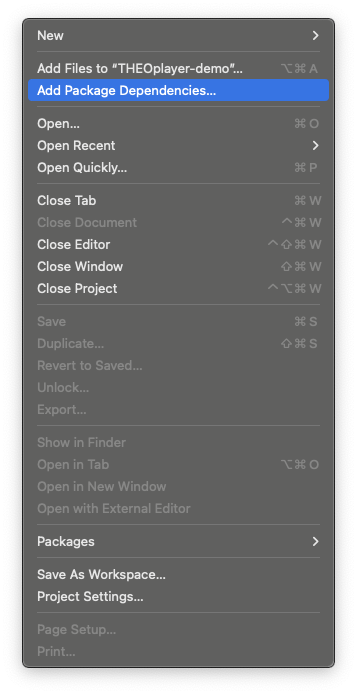
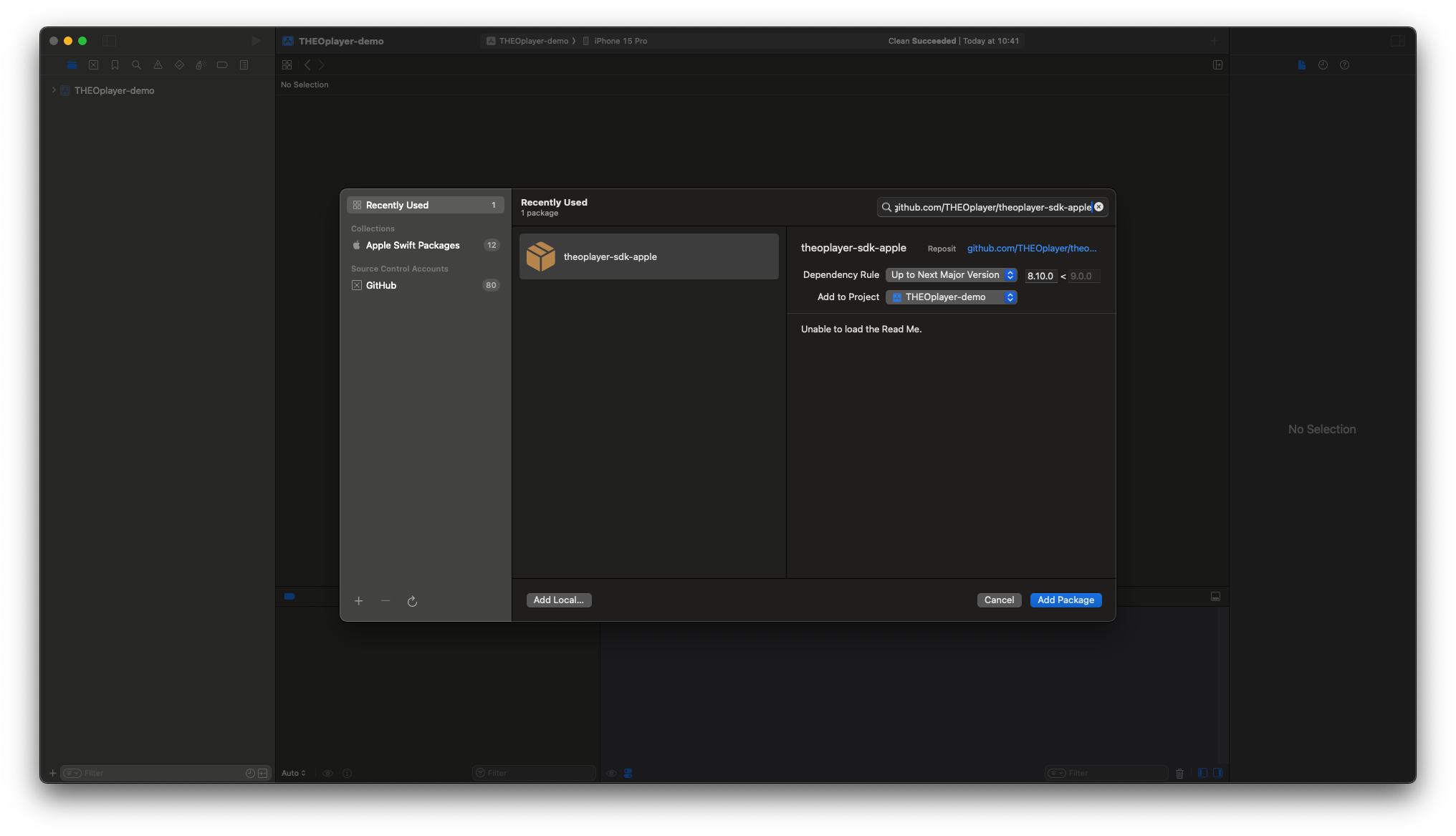
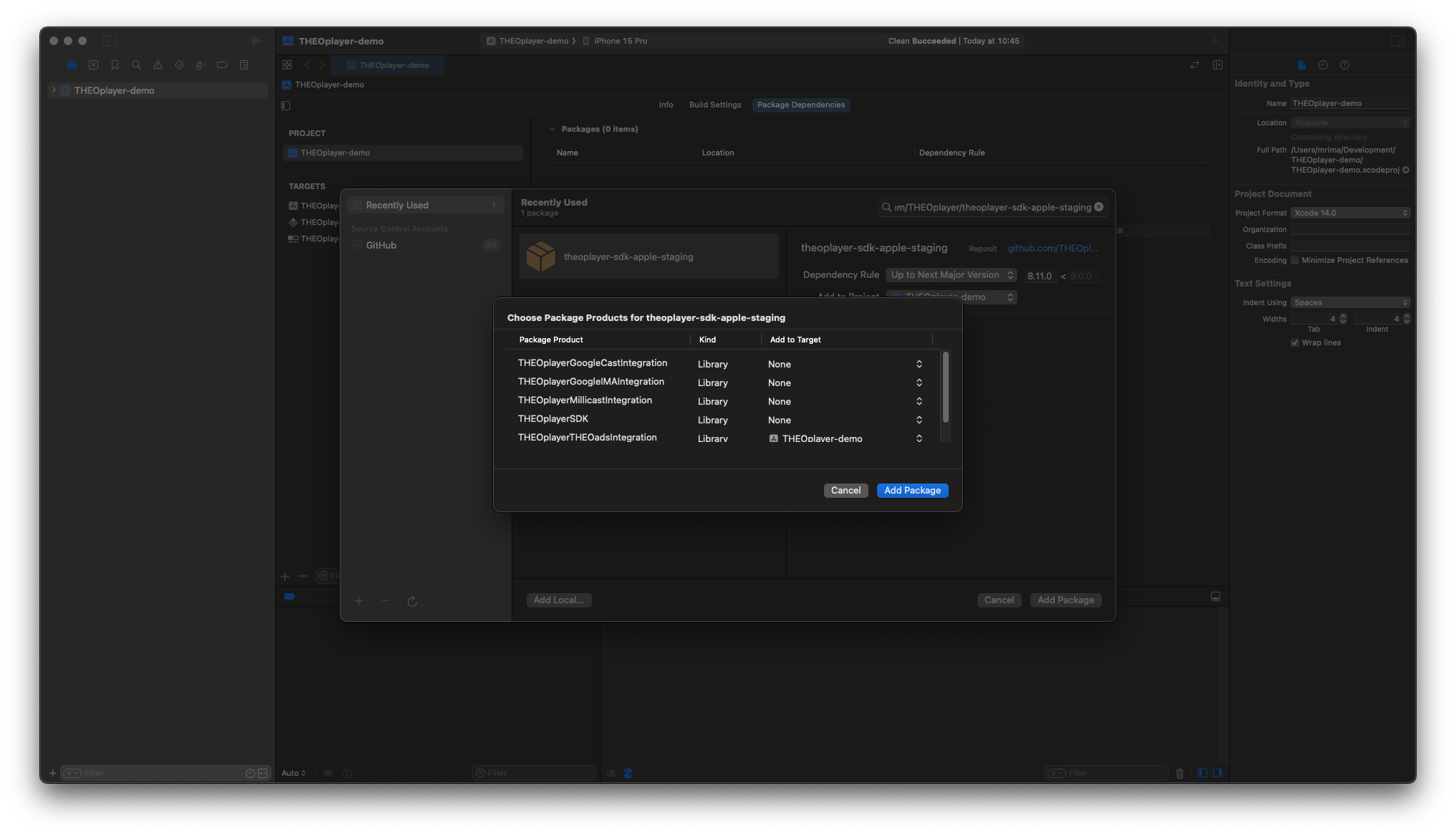
-
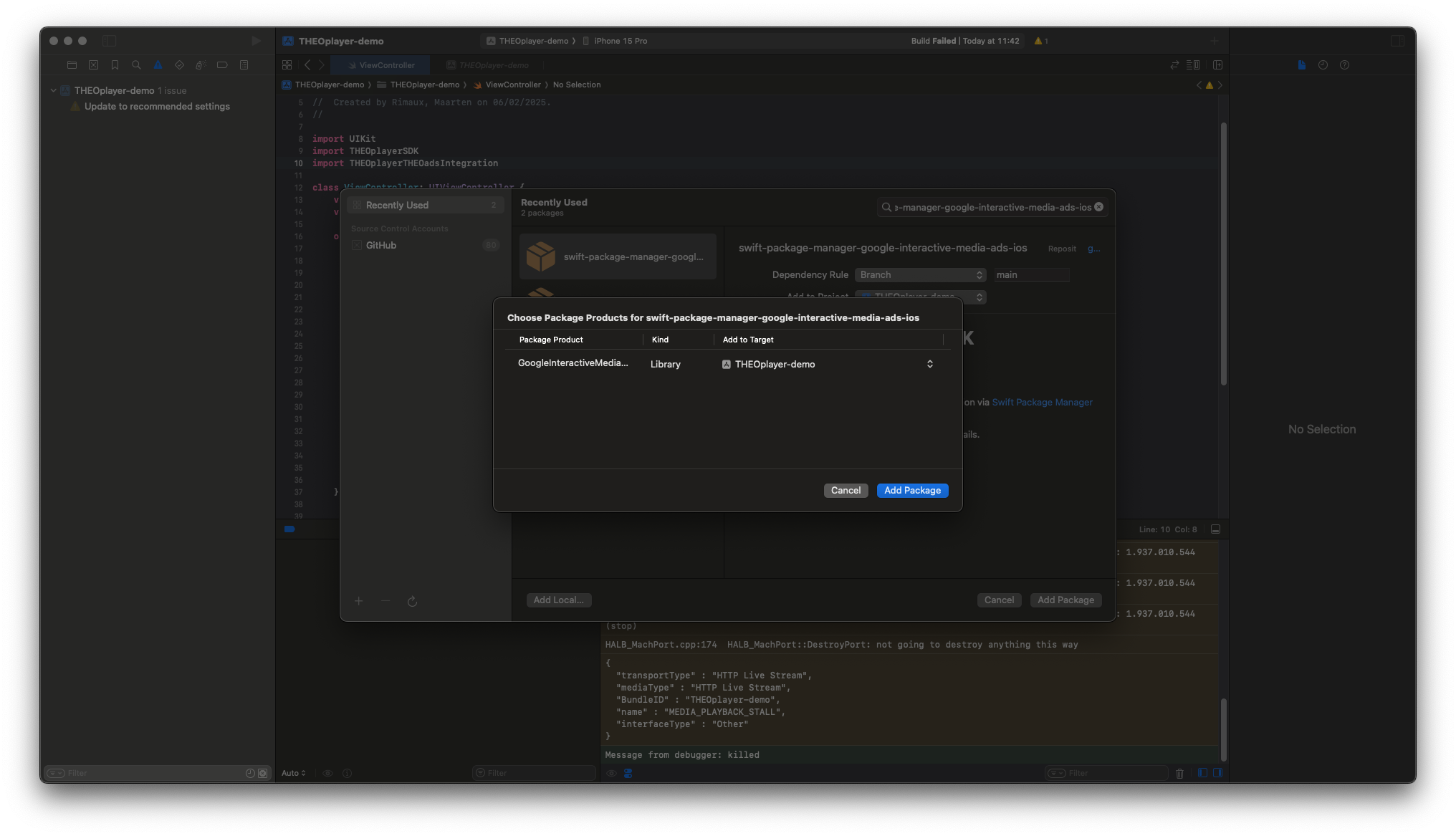
Add Google IMA. CocoaPods uses
GoogleAds-IMA-iOS-SDK; SwiftPM uses theGoogleInteractiveMediaAdsproduct.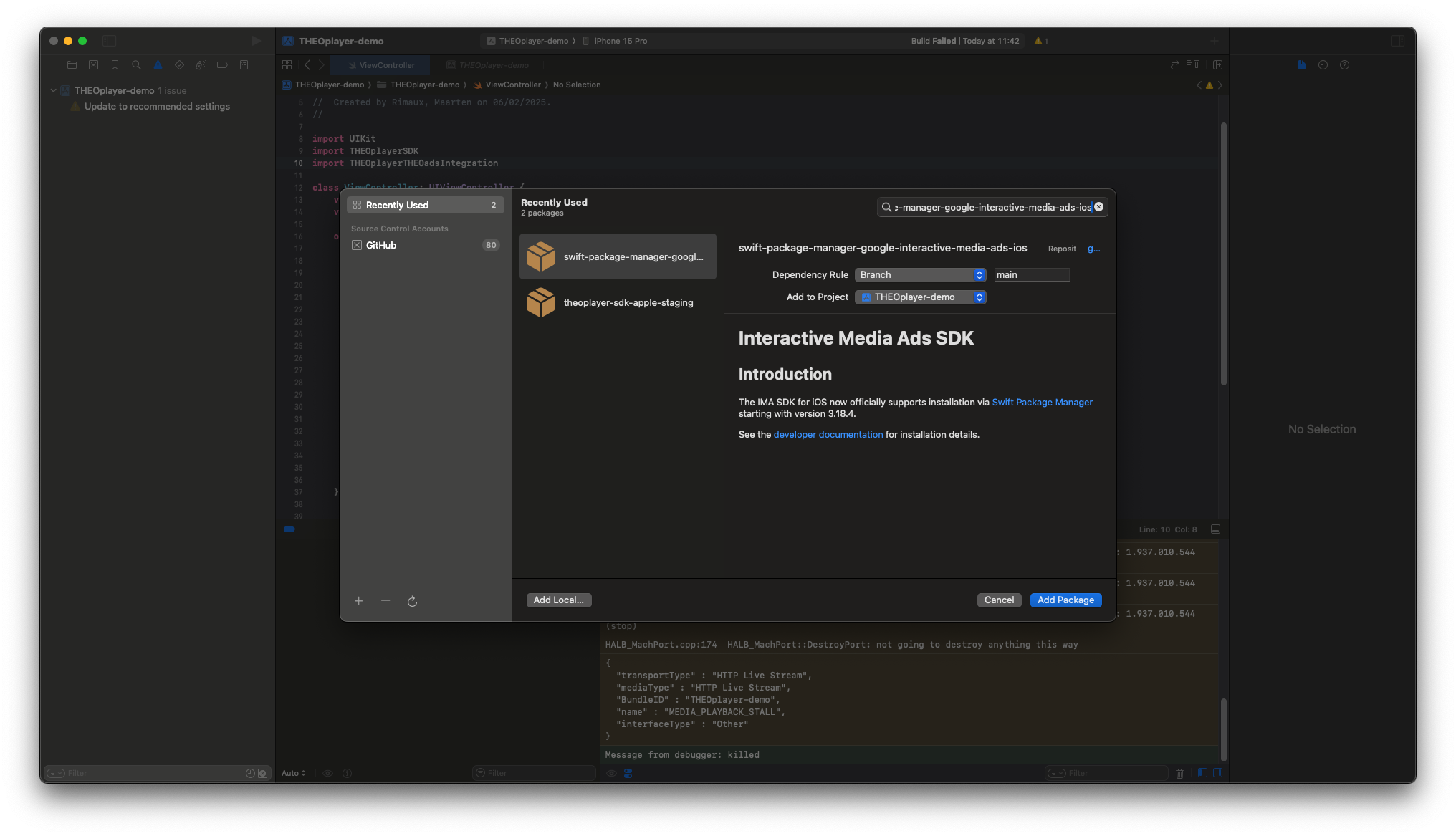
Integration
import THEOplayerSDK
import THEOplayerTHEOadsIntegration

let theoads = THEOadsIntegrationFactory.createIntegration(on: theoplayer)
theoplayer.addIntegration(theoads)

let typedSource = TypedSource(
    src: "CHANNEL-MONETIZED-HLS-URL",
    type: "application/x-mpegurl",
    hlsDateRange: true
)
let theoad = THEOAdDescription(
    networkCode: "NETWORK-CODE",
    customAssetKey: "CUSTOM-ASSET-KEY",
    breakManifestUrl: URL(string: "https://ADS-HOST/manifest/v1/ORG-ID/channels/CHANNEL-ID"),
    adTagParameters: ["key": "value"]
)
theoplayer.source = SourceDescription(source: typedSource, ads: [theoad])
breakManifestUrl points to the v2 Break Manifest. hlsDateRange enables handling of the SSAI cues in the channel's monetized HLS media playlist.
Verify
Load the channel's monetized HLS source and start playback. Confirm that the Break Manifest or SSAI cues schedule a break, the ad renders, and the OptiView impression appears in the portal.